 Luxe Themes
What You Can Change in a Ghost Theme Without Code
Four layers of Ghost customisation, from settings to a custom theme, what each can and cannot change, and how to tell before buying which layer your idea needs.
Quick answer: Ghost customisation has four layers. Design settings change the brand, the fonts and whatever the theme maker chose to expose, with no code. Code injection changes styling and adds scripts, with a little CSS. Editing the theme’s files changes anything, at the cost of doing it again on every update. A custom theme changes the structure of pages, which nothing above it can. Most people never need the last two.
You have a picture of the site you want, and a theme that gets you most of the way. The question is whether the rest is a setting, a few lines of CSS, or something that needs a developer. People ask this before buying a theme and again after, and the honest answer depends on which of four layers the change lives in.
This guide explains the four layers, what each can and cannot do, and how to tell in advance where your idea belongs. It applies to any theme, including Ghost’s own. We checked Ghost’s documentation and pricing in September 2026, and the screenshots are from one of our own sites.
Layer one: design settings
Every Ghost site has a design panel under Settings → Design & branding → Customize. It has two tabs, and the difference between them is the whole story of this layer.
The Brand tab is the same on every theme. It holds the accent colour, the publication icon, logo and cover image, and the heading and body fonts. Ghost applies these itself, and any theme that follows Ghost’s conventions picks them up.
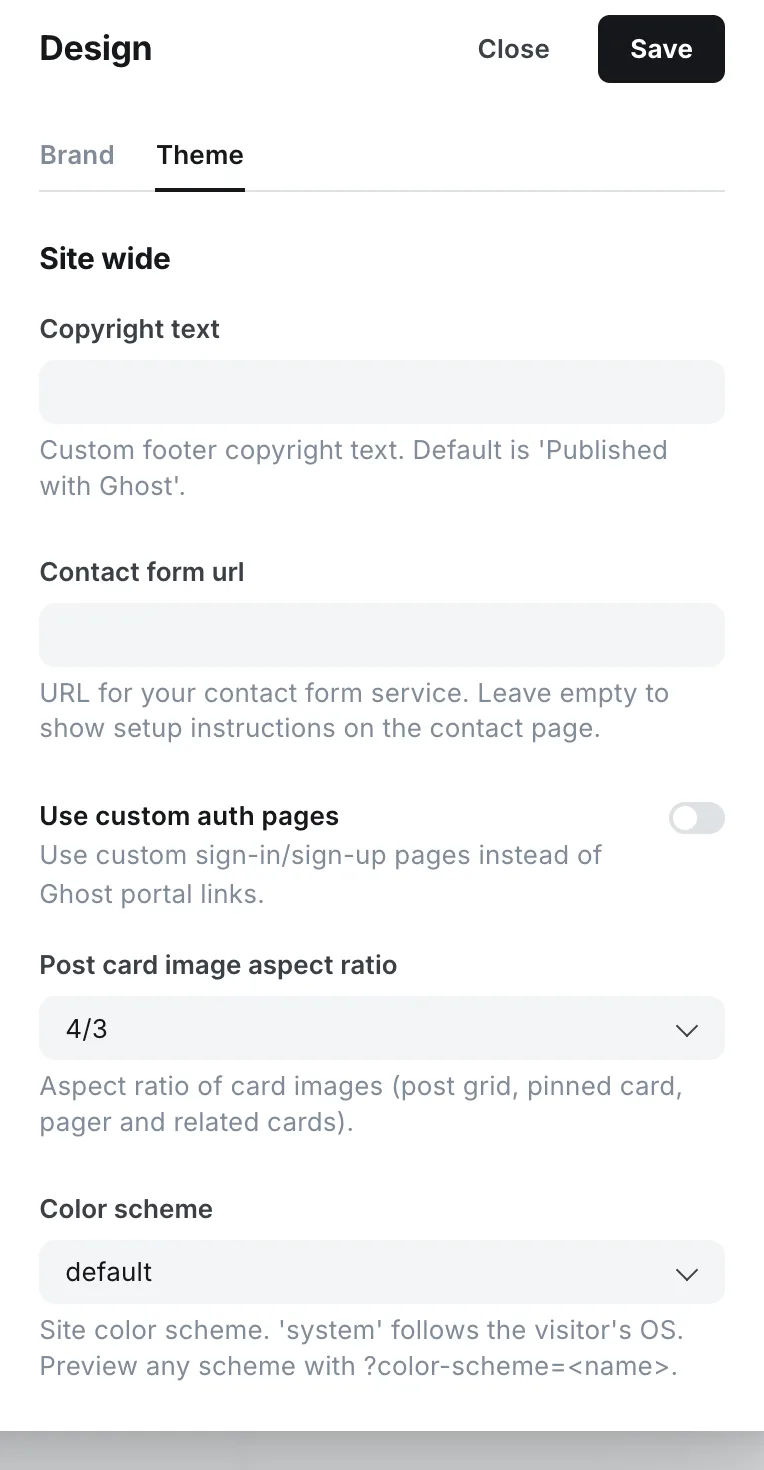
The Theme tab is different for every theme, because its contents are decided by the theme maker. Ghost lets a theme declare options, and the panel renders them as text fields, toggles, dropdowns, colour pickers and image uploads, grouped under site-wide, homepage and post headings. One theme offers a colour scheme and a card ratio; another offers six homepage layouts and a sidebar toggle; the default theme offers a wide range of layout and colour choices. Ghost’s design settings guide covers the mechanics, and notes that these options are theme dependent.
This is the layer to check before buying. A theme’s documentation or demo should list every option on its Theme tab. If the change you want is on that list, it costs nothing and survives every update. If it is not, no amount of clicking will find it, and you are looking at one of the layers below.
Two more things live here without code. Navigation, under its own settings entry, sets the primary menu, and a secondary one if the theme has a place for it. And the announcement bar puts a message across the top of every page. Both are Ghost features rather than theme features, so every theme shows the menu and the bar; only the secondary menu depends on the theme.
Layer two: code injection
Under Settings → Advanced → Code injection are two boxes, one for the top of every page and one for the bottom. Whatever you put there, Ghost adds to every page of the site, in front of or after the theme’s own code.
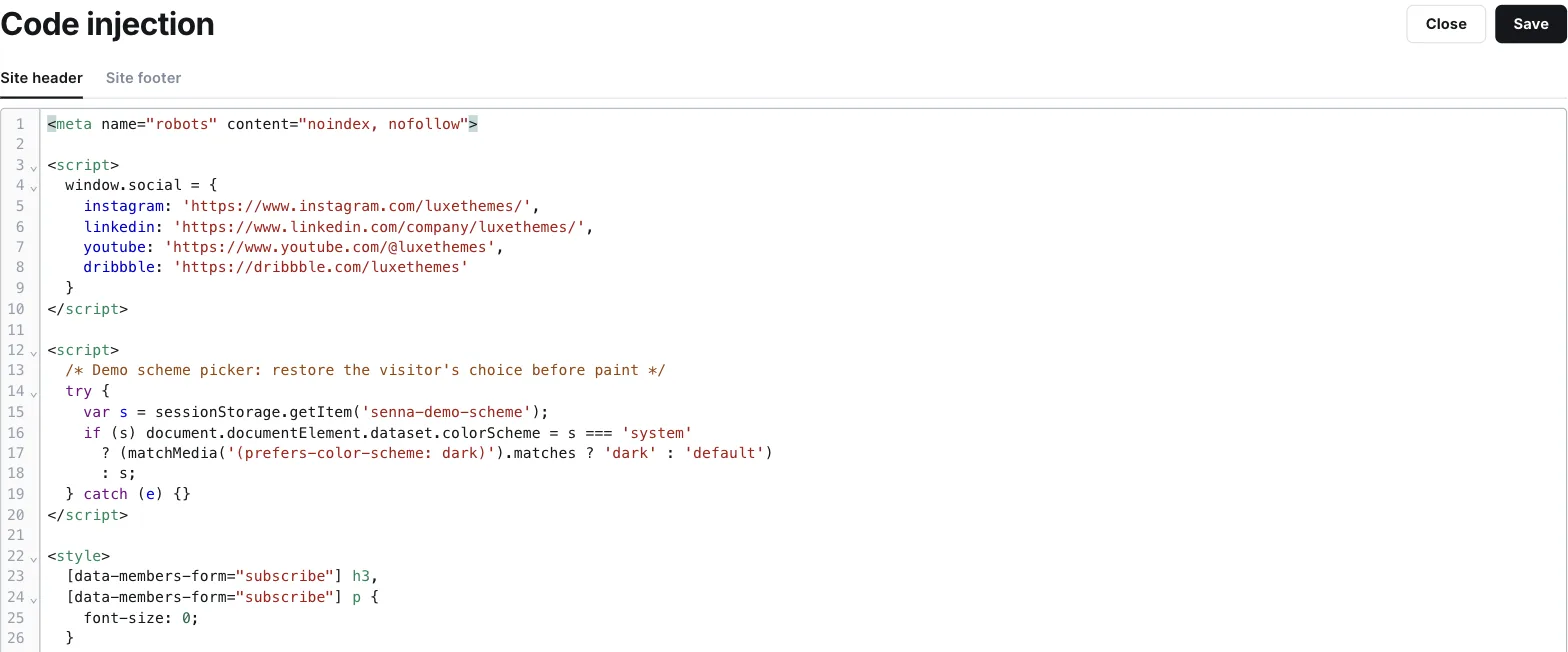
Three things belong here. The first is styling. A few lines of CSS in the header box override the theme’s own: a different heading size, a hidden element, a colour the settings do not offer. Because CSS applied after the theme wins, most visual changes that are not a setting are possible here. The second is scripts: analytics, a comments widget, a font loader, jobs that would each be a plugin on other platforms. The Ghost plugins guide shows what Ghost uses instead. The third is small behaviour changes, of the kind our snippets library collects, where a short script adds something the theme lacks.
The reason this layer matters is that it is outside the theme. Code injection is stored with the site’s settings, not in the theme’s files, so a theme update replaces the files and leaves it untouched, and a customisation made here never has to be redone. Our code injection guide covers what the two boxes can and cannot do. The one rule worth stating here is that if it can be done in code injection, it should be done in code injection.
What this layer cannot do is add content. It can hide a section, restyle a section, or move one with some effort, but it cannot make the theme output a section it does not have. That needs the theme’s files.
Layer three: editing the theme’s files
A Ghost theme is a zip of templates and stylesheets, and you can change any of it. Ghost’s admin has a built-in code editor, reached from the menu next to the active theme, or you can download the theme, edit it, and upload it again. Either way, this is where you can change anything: add a section to the homepage, remove an element the settings and CSS cannot reach, change what a post page shows.
The cost is permanent. Every edit you make lives inside the theme, and every theme update replaces the theme. The edits have to be applied again each time, by hand or with a repository workflow. Our theme update guide explains what survives an update and what does not, and this is the layer that does not. Before editing a file, it is worth asking whether the same result is possible one layer up.
There is also a plan limit here on Ghost’s own hosting. Ghost(Pro)‘s Starter plan allows only the official themes, with their built-in settings, and no uploads. Any other theme, whether bought or edited, needs the Publisher plan or above. Ghost’s pricing page states it as a plan difference rather than a technical one, and a self-hosted site has no such limit.
Layer four: a custom theme
A custom theme is when the structure you want does not exist in any theme. That means a homepage built around something no theme offers, a page type such as a directory or a course, or a layout that changes what a post fundamentally is. At that point you are not customising a theme, you are making one, and the honest name for the work is development.
The line between layer three and four is blurry in the code and sharp in practice. If you take a theme and change a few templates, you have a modified theme and the update problem above. If the changes are large enough that new releases of the original no longer matter to you, you have a theme of your own. Updates stop being a concern, because you will not be taking them. Choose the second only when you have decided to own the result.
Finding the layer before you buy
The four layers give you a test to run on any idea. Ask what the change is.
| The change is… | The layer |
|---|---|
| A colour, a font, a logo | Design settings, Brand tab |
| A layout, an option the theme advertises | Design settings, Theme tab, if the theme exposes it |
| A style the theme does not offer, a hidden element, a script | Code injection |
| A new section, a removed structure, a different post page | The theme’s files |
| A page type or homepage no theme has | A custom theme |
Then read the theme’s documentation with that answer in mind. A good theme page lists its settings and shows every layout in a demo; if the thing you want is a setting, you will find it named. If you cannot find it, assume it is not a setting and decide whether code injection or a file edit is a trade you are willing to make.
When this test says “custom theme”, it is worth pausing on whether the structure is really necessary or whether a theme’s existing shape would carry the content. Most publications that believe they need a custom theme need a good theme and two paragraphs of CSS.
Where this leaves you
You can now place any change on one of four layers, and you know which two are free of consequences and which two you pay for at every update. If your idea sits in the first two, the code injection guide and the theme’s own settings are the whole job. Our Ghost themes document every setting they expose, which is the list this guide says to read first.
Frequently Asked Questions
Can I customise a Ghost theme without coding?
What is code injection in Ghost?
Do I need Ghost(Pro) Publisher to use a custom theme?
When do I need a custom Ghost theme?
Keep reading
Update a Ghost Theme Without Losing Your Settings
Ghost identifies a theme by the name of the zip you upload. Same name, and your settings survive the update. We tested what survives and what does not.
Ghost SEO: Built-in Features and What You Still Do
What Ghost does for search on its own, checked on a live site: sitemaps, structured data, canonicals, meta data, redirects, AI-search files, and your part.
Ghost Portal Guide: Settings, Links & Customization
How Ghost's Portal works and how to shape it: signup options, default billing cycle, the floating button, every Portal link and data attribute, translation.
Ghost Analytics: Built-In and Third-Party
Set up Ghost 6 native analytics (Tinybird), fix the empty Traffic dashboard on self-hosted installs, and add GA4 or privacy-focused tools via code injection.
Recommended Themes
Themes with at least one of the features this guide touches: color schemes, multiple post layouts and hero layouts.
Senna
Strongest hereSenna is writing on paper. A warm paper ground, white cards resting on it and a serif carrying the headlines, with the navigation in a sidebar that stays beside your work instead of above it. Built for writers, newsletters and small magazines where the words come first, and managed entirely from Ghost admin.
Shiro
Strongest hereShiro starts with a search. Your name, one line, and a search field where a hero usually goes, then your featured stories as portrait cards, in one of seven color schemes. Nine ways to open a post and membership pages inside the theme. Built for minimal magazines and archives that readers search rather than browse, and managed entirely from Ghost admin.
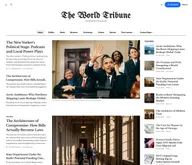
Tribune
Strongest hereTribune is the front page of a newspaper. Lead stories beside the day's picture, a Featured list at the edge, then your sections by topic, each in its own layout, under a masthead that folds away as the reader scrolls. Built for newspapers and multi-author magazines that publish several stories a day, and managed entirely from Ghost admin.
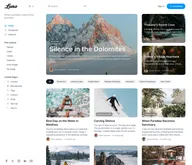
Luno
Strongest hereLuno is a blog that works like an app. A menu that stays open in a fixed sidebar, search a keystroke away, a light and dark switch beside your logo, and a homepage that opens with three featured stories as cover cards. Built for travel, lifestyle and product blogs whose readers expect an interface they already know, and managed entirely from Ghost admin.
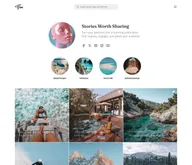
Flow
Strongest hereFlow is a profile page for a creator. Your photo, a line about you and your links at the top, a row of round highlights for your topics, and your posts as a square grid, edge to edge. The menu waits behind one button so nothing competes with the pictures. Built for creators and communities whose readers arrive from social media, and managed entirely from Ghost admin.
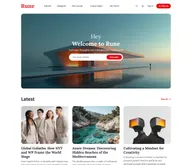
Rune
Strongest hereRune is an editor's front page. A cover-image welcome with one thing to do, then the latest stories, your Editor's Picks as tall cover cards, one topic you highlight, and the team behind it. Built for digital magazines where someone decides what goes on top, and managed entirely from Ghost admin.
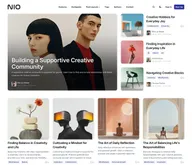
Nio
Strongest hereNio is a grid of squares. One featured story as a large photo card, then your posts as square cards four across, a band for the topic you highlight, and a row of your authors. Every image sits in the same frame, so a page of mixed pictures stays in order. Built for studios, portfolios and design blogs, and managed entirely from Ghost admin.


Comparing options? Browse all premium Ghost themes side by side.
Get every theme in one bundle
The complete Luxe Themes bundle: every theme, one purchase.