 Luxe Themes
Ghost Memberships: Set Up Free and Paid Tiers
How Ghost memberships work and how to set them up: free and paid tiers, connecting Stripe, gating posts and managing members. Ghost takes no cut of revenue.
Quick answer: Ghost’s built-in membership system lets readers subscribe for free or paid access, with Stripe handling payments directly. Ghost takes 0% of subscription revenue — only Stripe’s ~2.9% + $0.30 fee applies, versus Substack’s and Patreon’s 10% cut. Create tiers, gate content, and grow a paid newsletter without plugins.
What Is Ghost Membership?
Ghost’s membership system turns your publication into a subscription business. Readers sign up for free or paid access, you gate content by tier, and Stripe handles all payment processing directly — no third-party plugins, no revenue-sharing middlemen.
If you’re planning the bigger picture, start with our overview of building a membership website with Ghost — then use this guide for the step-by-step setup.
The financial model is straightforward: Ghost takes 0% of your subscription revenue. The only fee is Stripe’s processing charge (~2.9% + $0.30 per transaction). Compare that to Substack’s 10% cut or Patreon’s 10% (standardized in August 2025).
For a newsletter charging $10/month with 500 paid subscribers, here’s what each platform keeps:
| Platform | Monthly Revenue | Platform Fee | Stripe Fee | You Keep |
|---|---|---|---|---|
| Ghost | $5,000 | $0 (0%) | ~$160 | $4,840 |
| Substack | $5,000 | $500 (10%) | ~$160 | $4,340 |
| Patreon | $5,000 | $500 (10%) | ~$160 | $4,340 |
| Beehiiv | $5,000 | $0 | ~$160 | $4,840* |
*Beehiiv takes 0% of subscription revenue but charges a platform fee starting at $42/month (Scale plan). Ghost(Pro) Publisher costs $29/month. Both Ghost and Beehiiv charge no percentage cut — the difference is in the hosting cost.
Requirement: Paid memberships require Ghost(Pro) Publisher ($29/month) or higher. The Starter plan ($15/month, annual) supports free members only — paid subscriptions were removed from Starter in the July 2025 pricing update.
Free vs Paid Membership Tiers
Ghost supports both free and paid membership tiers. You configure these in Settings → Membership → Tiers.
Free Tier
The free tier is always available and cannot be removed. Free members get:
- Access to content marked as “free members”
- Newsletter subscriptions you choose to include
- An account on your site (login, manage preferences)
Configure what free members see in Settings → Membership → Access:
- Public — all content visible without signup
- Members only — all content requires free signup
- Paid-members only — only paid subscribers see full content
Paid Tiers
Create up to 3 paid tiers on Publisher (10 on Business). For each tier, you set:
- Name — e.g., “Supporter”, “Premium”, “Founding Member”
- Monthly price — e.g., $5/month
- Yearly price — e.g., $50/year (typically 15-20% discount for annual billing)
- Description — what the tier includes
- Benefits — bullet points displayed on the pricing page
- Welcome page — custom URL shown after subscription (e.g., a thank-you page)
- Free trial — optional trial period in days
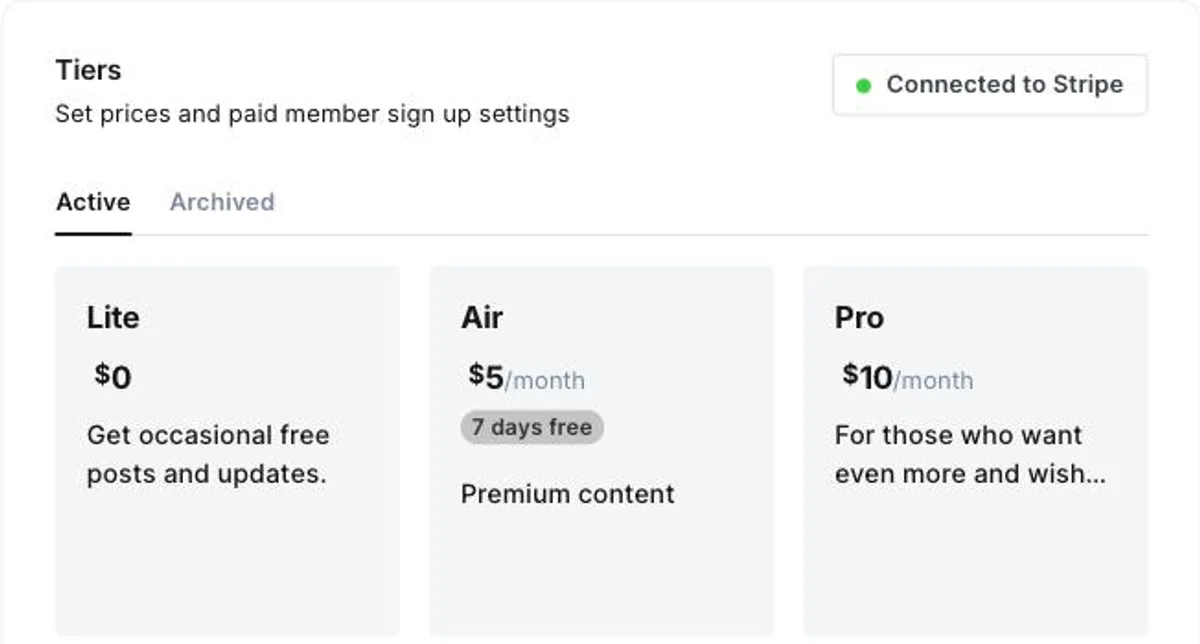
Ghost 6 also added gift subscriptions: readers can buy a paid tier for someone else through a shareable link (Settings → Membership → Gift subscriptions), which is a useful holiday and launch lever for paid publications.
Ghost also supports one-time payments through Tips & Donations — readers can make a single payment to support your work without committing to a recurring plan. Configure the suggested amount and currency in Settings → Membership → Tips & donations.
Setting Up Ghost Membership with Stripe
Ghost uses Stripe for all payment processing. Setup takes about 5 minutes.
1. Connect Stripe
- Go to Settings → Membership in Ghost Admin
- Click Connect to Stripe
- You’ll be redirected to Stripe to authorize the connection
- Grant Ghost permission to create products, subscriptions, and manage customers
- Return to Ghost — Stripe is now connected
Ghost creates Stripe Products for each membership tier automatically. All billing, invoicing, and subscription management happens through Stripe. For taxes, currencies, payment methods, and failed-payment handling, see our dedicated Ghost Stripe integration guide.
2. Test Before Going Live
Use Stripe’s test mode to verify everything works before accepting real payments:
- In Ghost Admin, toggle to Stripe test mode
- Create a test subscription using Stripe’s test card:
4242 4242 4242 4242 - Verify the signup flow, email confirmation, and content access
- Switch to live mode when ready
3. Configure Portal
Ghost Portal is the member-facing signup and account interface. Configure it in Settings → Membership → Signup portal.
Portal controls which tiers appear during signup, whether free membership is offered alongside paid tiers, accent colors, welcome messages, and the account management page where members can upgrade, cancel, or update payment.
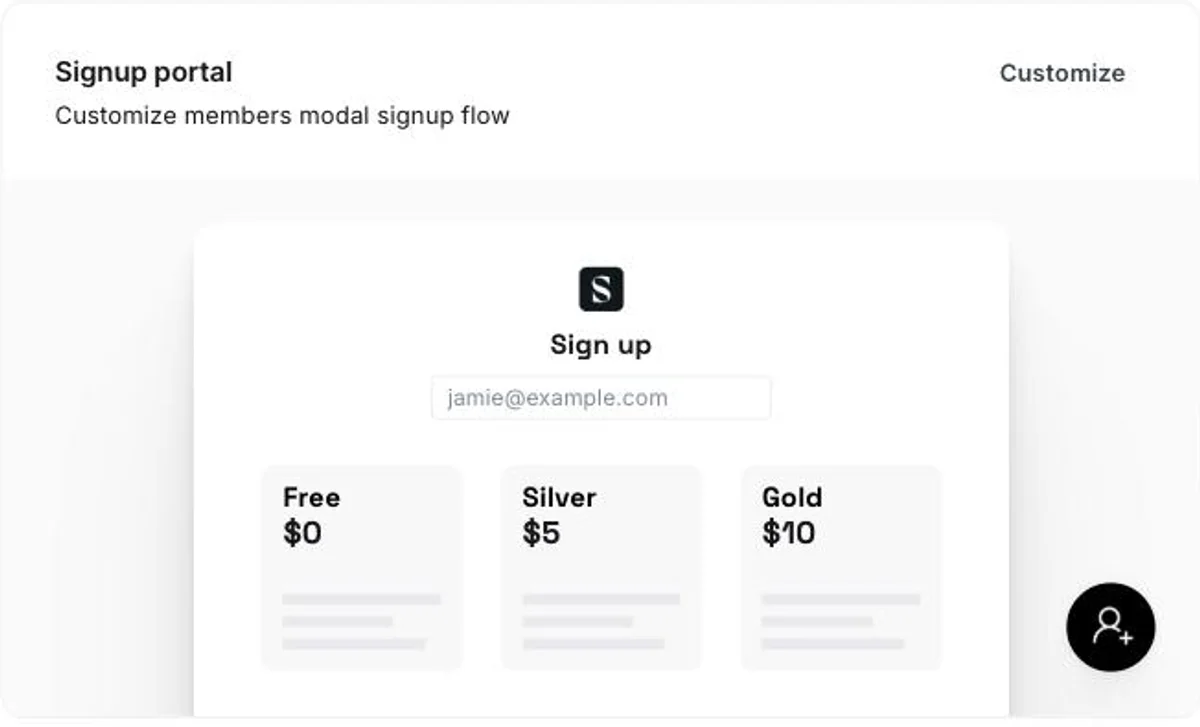
Portal appears as a floating button on your site. Your theme can also include custom membership pages that link into Portal flows — most premium Ghost themes include pre-built membership pages.
Managing Members
Ghost provides built-in tools for member management without needing external CRM software.
Import and Export
Import: Upload a CSV with email addresses, names, and optional labels. Paid members keep their subscriptions if their billing already runs through the Stripe account you connect to Ghost: the CSV links each one by their Stripe customer ID. Subscriptions held in someone else’s Stripe account cannot move, and those members need to subscribe again.
Export: Download your complete member list as CSV from the Members page. Includes email, name, subscription status, labels, and signup date.
Segments and Labels
Labels let you organize members into segments. Apply labels manually, during import, or automatically based on signup form. Use segments to:
- Send newsletters to specific groups
- Track which signup form or page drove each subscriber
- Create targeted content for different audience segments
Revenue Dashboard
Ghost’s dashboard shows real-time membership metrics:
- MRR (Monthly Recurring Revenue) — total predictable monthly income
- Total members — free and paid counts
- Net new members — growth over time
- Churn rate — members canceling per period
- Top converting posts — which articles drive the most paid signups
For per-subscriber details, check your Stripe Dashboard directly.
Member-Only Content
Ghost’s content gating works per-post. When writing or editing a post, choose visibility:
- Public — visible to everyone
- Members only — requires free or paid membership
- Paid members only — only paid subscribers can read
- Specific tier — only members on a particular tier
Content Preview with Paywall Card
For paid-gated posts, insert a paywall card (type /paywall in the editor) where you want the gate to appear. Everything above the card is visible to everyone. Everything below requires the specified access level.
This lets you hook readers with the opening paragraphs and convert them at the natural point of interest. The box readers see at the gate has fixed wording, and the members CTA guide shows how to replace it with your own.
Server-Side Security
Ghost’s content gating is server-side. Paywalled content is not included in the page source unless the reader is authenticated:
- Content cannot be accessed through browser developer tools
- Direct links to paywalled content require authentication
- RSS feeds respect access levels
- Search engines only index the preview portion
This is a meaningful security difference compared to platforms where gated content can be accessed through direct links or source inspection.
Ghost Membership Pricing Strategy
There is no universal right price. But here are patterns from successful Ghost publishers:
Single Tier (Best for Starting Out)
Free newsletter + one paid tier at $7-10/month. Simple, low friction. Most publications start here.
When to use: You’re building an audience and want to validate that people will pay before adding complexity.
Two Tiers
Free + Standard ($5-10/month) + Premium ($15-25/month). Premium includes extras like early access, exclusive posts, or community access.
When to use: You have a loyal free audience and want to capture both casual supporters and super-fans.
Pricing Math
At $7/month with Stripe’s 2.9% + $0.30 fee:
- Stripe keeps: $0.50 per transaction
- You keep: $6.50 per subscriber per month
- 100 paid subscribers = $650/month net
- 500 paid subscribers = $3,250/month net
- 1,000 paid subscribers = $6,500/month net
Annual discount: Offer 15-20% off for annual billing. Ghost handles both monthly and yearly billing per tier automatically. Annual subscribers churn at significantly lower rates — the upfront commitment creates stickiness.
The Conversion Funnel
The path from visitor to paid subscriber typically follows this progression:
- Visitor reads a public post → signs up for free membership
- Free member receives newsletters → builds trust over time
- Free member hits paywall on premium content → converts to paid
- Paid member stays for value → low churn
How many free members convert to paid depends heavily on your niche, content quality, and pricing. Ghost’s built-in analytics (Dashboard → Top converting posts) shows you which articles drive the most paid signups so you can write more of what works.
Themes That Support Membership
Ghost’s default Portal modal handles signup and account management. But a dedicated pricing page on your site — with tier comparison, benefits, and social proof — converts significantly better than a generic modal.
Themes with pre-built membership pages include Luno, Shiro and Flow, each with its own pricing, sign-in and sign-up pages. All include the paywall card styling that makes gated content previews look intentional rather than broken.
See all Ghost themes with membership support →
Common Questions
Can members switch between tiers?
Yes. Members upgrade or downgrade through their Portal account page. Stripe prorates automatically — upgrading mid-cycle charges the difference, downgrades take effect at the next billing cycle.
Can I import subscribers from Substack or another platform?
You can import email addresses via CSV. However, paid subscribers will need to re-subscribe through Ghost’s Stripe connection. Ghost has a dedicated Substack migration tool that handles the email import and redirects.
What happens if a payment fails?
Stripe handles payment retries automatically. After multiple failed attempts, the subscription is marked as past due. Configure Stripe’s retry behavior in your Stripe Dashboard under Settings → Billing → Subscription and emails.
How does Ghost membership compare to Substack?
Ghost gives you full ownership of your audience, your content, and your brand. You keep 100% of revenue (minus Stripe fees). Substack takes 10% and controls the platform. See our detailed Ghost vs Substack comparison for the full breakdown.
Do I need Ghost(Pro) for memberships?
Free memberships work on any Ghost installation, including self-hosted. Paid memberships require either Ghost(Pro) Publisher ($29/month) or a self-hosted setup with Stripe integration configured manually. For most publishers, Ghost(Pro) is simpler — see our Ghost installation guide for all the options.
Still choosing a platform? Our best membership platforms comparison covers Ghost vs Patreon, Substack, MemberPress, Memberful, Squarespace, and Mighty Networks.
Frequently Asked Questions
Does Ghost charge fees for memberships?
Do I need a plugin for memberships on Ghost?
How do I set up paid memberships on Ghost?
Can I offer both free and paid tiers?
Keep reading
Why Ghost Asks Subscribers to Confirm by Email
Ghost makes every new subscriber click a link before they exist on your list, and never shows the ones who did not. Why that is, and how to lose fewer of them.
Ghost as a Publishing Platform: Full Overview
Ghost combines a CMS, newsletter system, and membership platform into one. Here is what makes it different from WordPress, Substack, and website builders.
Ghost Newsletter: Setup, Design and Delivery
How Ghost's built-in newsletter works and how to set it up: sending with Mailgun or without it, email design, segments, and paid subscriptions with no cut.
Stopping Spam Signups on a Ghost Site
What spam signups do to a Ghost site, what Ghost already blocks on its own, and what to add in front of it. We tested the built-in limit on our own site.
Recommended Themes
Themes with at least one of the features this guide touches: membership pages, newsletter integration and private posts.

Tribune
Strongest hereTribune is the front page of a newspaper. Lead stories beside the day's picture, a Featured list at the edge, then your sections by topic, each in its own layout, under a masthead that folds away as the reader scrolls. Built for newspapers and multi-author magazines that publish several stories a day, and managed entirely from Ghost admin.

Luno
Strongest hereLuno is a blog that works like an app. A menu that stays open in a fixed sidebar, search a keystroke away, a light and dark switch beside your logo, and a homepage that opens with three featured stories as cover cards. Built for travel, lifestyle and product blogs whose readers expect an interface they already know, and managed entirely from Ghost admin.


Comparing options? Browse all premium Ghost themes side by side.
Get every theme in one bundle
The complete Luxe Themes bundle: every theme, one purchase.