 Luxe Themes
Ghost Newsletter: Setup, Design and Delivery
How Ghost's built-in newsletter works and how to set it up: sending with Mailgun or without it, email design, segments, and paid subscriptions with no cut.
Quick answer: Ghost has a full email newsletter system built in — write a post, pick an audience, and it publishes to your site and your subscribers’ inboxes at once. No Mailchimp or ConvertKit required. Ghost takes 0% of revenue; you pay only Stripe’s ~2.9% + $0.30 on paid subscriptions.
What Is Ghost Newsletter?
Ghost includes a full email newsletter system built directly into the publishing platform. Write a post, choose your audience, click publish — it goes to your website and your subscribers’ inboxes simultaneously. No Mailchimp. No ConvertKit. No third-party integrations to manage.
This guide covers the hands-on setup. For the bigger picture — how Ghost works as a newsletter platform you own, compared to Substack, Mailchimp, and ConvertKit — start there, then come back for the steps.
Ghost’s newsletter system handles everything: subscriber management, email design, audience segmentation, delivery analytics, and automation. The platform takes 0% of your revenue — you only pay Stripe’s processing fee (~2.9% + $0.30) on paid subscriptions.
Total publisher earnings on Ghost have surpassed $100 million, with Ghost taking 0% of that revenue.
Setting Up Your First Ghost Newsletter
This section covers the settings. If you’re launching from scratch — no list, no site yet — how to start a newsletter with Ghost walks the whole launch sequence in order.
Step 1: Enable Newsletter Sending
In Ghost Admin, go to Settings → Newsletters. Toggle on newsletter sending.
- Ghost(Pro): Email delivery is already configured. Ghost handles SPF, DKIM, DMARC authentication, blocklist monitoring, and sending domain reputation.
- Self-hosted: You’ll need to configure Mailgun (covered later in this guide).
Step 2: Create a Newsletter
Go to Settings → Newsletters → Add newsletter.
Configure:
- Name and description — the internal identifier and what subscribers see
- Sender name — the “From” name in subscribers’ inboxes
- Reply-to email — where responses go when subscribers hit reply
- Opt-in toggle — whether existing members are auto-subscribed
Ghost supports multiple newsletters per site. Each has its own subscription list, settings, and template. Common setups:
- Topic segmentation — a weekly product roundup and a monthly deep analysis
- Frequency segmentation — daily news briefs and weekly digests
- Content type segmentation — articles vs. podcast episode notifications
Members subscribe to individual newsletters at signup or through their account preferences.
Step 3: Configure Signup Forms
Ghost offers three methods for collecting subscribers:
Portal (Default): A floating signup button appears on every page. Customize its appearance and which newsletters to display in Settings → Signup portal.
Embeddable Forms: Go to Settings → Signup forms. Choose between branded (with your logo) or minimal (just an email field). Copy the embed code and paste it on any website. Labels track which form or page drove each subscriber.
Portal Links: Add #/portal/signup to any link to trigger the signup modal:
<a href="#/portal/signup">Subscribe to our newsletter</a>This works in posts, pages, and navigation — giving you signup opportunities anywhere on your site.
Ghost Email Templates and Design
Go to Settings → Newsletters → [Your Newsletter] → Edit → Design.
Global Design Options
- Email background color — sets the overall email canvas
- Heading and body font — choose from Ghost’s font library
- Heading weight — bold or normal
Header and Body Styling
- Header image — recommended 1200×600 PNG with transparent background
- Post title color and alignment — customize headline presentation
- Button style — corner shape (square, rounded, pill), appearance (filled/outline), color
- Link color and style — underlined, regular, or bold
- Image corners — rounded or square
- Divider color — separates email sections
Footer Options
- Audience feedback — “More like this” / “Less like this” buttons
- Comments link — drives engagement back to your site
- Recent posts — cross-promotion within the email
- Subscription details — shows the reader which newsletter they’re subscribed to
Ghost’s email templates render correctly across Gmail, Apple Mail, and Outlook without additional CSS work.
Configuring Mailgun for Ghost
Skip this section if you’re on Ghost(Pro) — email delivery is already handled.
For self-hosted Ghost, Mailgun is the only supported bulk email API. Ghost sends newsletters through Mailgun’s API (not SMTP) for reliability and deliverability tracking.
1. Create a Mailgun Account
Sign up at mailgun.com. Add a sending domain — recommended format: mg.yourdomain.com. Using a subdomain keeps your root domain’s email reputation separate.
2. Configure DNS Records
Add the SPF and DKIM records Mailgun provides to your domain’s DNS. Also add a DMARC record:
Type: TXTName: _dmarc.yourdomain.comValue: v=DMARC1; p=none;Start with p=none to monitor, then escalate to p=quarantine or p=reject after confirming deliverability.
3. Add to Ghost
In Ghost Admin: Settings → Newsletters → Mailgun → Edit → enter your Mailgun region (US or EU), domain, and private API key.
4. Configure Transactional Email (SMTP)
Mailgun handles bulk newsletters. For transactional emails (signup confirmations, magic login links), add SMTP to your config.production.json:
{ "mail": { "transport": "SMTP", "options": { "service": "Mailgun", "host": "smtp.mailgun.org", "port": 587, "auth": { "user": "postmaster@mg.yourdomain.com", "pass": "your-mailgun-smtp-password" } } }}5. Test
Send a test email from the post editor (Preview → Email → Test) to verify delivery before sending to your full list.
Mailgun Pricing (2026)
Mailgun discontinued its legacy Flex (pay-as-you-go) plan for new accounts in late 2025, so a self-hosted newsletter now needs a monthly plan. Current plans as verified in August 2026:
| Plan | Price | Volume |
|---|---|---|
| Free | $0 | 100 emails/day (testing only) |
| Basic | $15/mo | 10,000/mo included |
| Foundation | $35/mo | 50,000/mo included |
| Scale | $90/mo | 100,000/mo included |
For newsletters under 1,000 members, Ghost(Pro) Publisher at $29/month (with unlimited sends included) is often more cost-effective than self-hosting with Mailgun. See our self-hosting guide for a full cost comparison.
Can You Send Ghost Newsletters Without Mailgun?
This is the most common question we hear from people who self-host, so here is the straight answer: no — for bulk newsletter sending, self-hosted Ghost supports Mailgun and nothing else. The SMTP settings in config.production.json only carry transactional mail (magic links, signup confirmations, staff invites); pointing them at Postmark, SES, or Gmail will not deliver newsletters. Ghost’s docs are explicit that bulk email “can’t be done with basic SMTP”.
Your realistic options if you don’t want a Mailgun account:
- Use a host that includes delivery. Ghost(Pro) bundles unlimited sends on every plan, and several third-party managed hosts include a monthly email allowance (typically around 10,000 emails, with the option to plug in your own Mailgun for more). See the Ghost hosting comparison.
- Keep Mailgun small. For a modest list, Mailgun’s entry-level Basic plan is $15/month for 10,000 emails — enough for 1,000 subscribers × four sends a month. (Mailgun’s old pay-as-you-go Flex plan is no longer offered to new accounts, so there is no cheaper metered option.)
- Send from Ghost, deliver elsewhere — carefully. Some self-hosters route Ghost’s Mailgun API calls through third-party relays that speak the Mailgun API. It works for some, but it is unofficial, unsupported by Ghost, and easy to break on updates; treat it as an experiment, not a foundation for a paid publication.
What you should not do is run a newsletter of any size through a personal SMTP account: deliverability collapses, and Ghost isn’t built for it.
Subscriber Management and Segmentation
Sending to Segments
When publishing, the email panel lets you choose your audience:
- All members — everyone on your list
- Free members only — non-paying subscribers
- Paid members only — paying subscribers
- Specific label — a custom segment you’ve created
Publishing Modes
- Publish and email — post goes to your website and inboxes simultaneously
- Publish only — appears on your website with no email send
- Email only — sends to subscribers without creating a public web post (good for exclusive content, roundups, or promotions)
Email-Only Content Within Posts
Insert an “Email content” card (via the / menu in the editor) to add content that appears only in the email version, not on the web. Useful for subscriber-only calls-to-action inside publicly visible posts.
Content Access and Email Delivery
Post access level automatically determines email delivery. A post set to “Paid Members Only” is emailed only to paying subscribers. A post set to “Members” goes to both free and paid.
Newsletter Analytics and Open Rates
Ghost provides per-send email analytics accessible via the graph icon in the Post list:
- Opens — unique member opens / total recipients = open rate
- Clicks — unique member clicks / total recipients = click rate
- Individual link performance — each link with unique click counts
- Audience feedback — “More like this” / “Less like this” responses
- Benchmarking — your rate vs. your last 20 newsletters
Ghost 6.0 added a dedicated Newsletter tab in Analytics with subscriber growth graphs, average open/click rates by date range, and filtering across multiple newsletters.
Open Rate Reality Check
Industry-wide average open rates sit around 42-44% (2025 data from MailerLite). But this number is misleading.
Important caveat: Apple Mail Privacy Protection (MPP) preloads email content for Apple Mail users, registering an “open” even if the reader never saw it. Since Apple Mail holds roughly 50% of email client market share, this inflates open rates significantly. All open rate data since late 2021 is unreliable as a true engagement metric. Click-through rate is a more honest measure — the 2025 industry average click-to-open rate is around 6.8%.
Improving Deliverability
The practices that matter most:
- Limit links — keep to 12 or fewer per email. Excessive links trigger spam filters.
- Avoid spam trigger words — “free,” “act now,” “urgent” in subject lines reduce deliverability
- Ask subscribers to add you — in your welcome email, ask readers to move you to their Primary tab (Gmail) and add your address to contacts
- Clean your list — periodically remove subscribers who haven’t opened in 6+ months. A smaller engaged list outperforms a large inactive one.
- Test before sending — run your email through mail-tester.com to check authentication and content quality
Custom Sending Domain
Available on Ghost(Pro) Publisher plan and higher. Changes your “From” address from noreply@ghost.io to newsletter@yourdomain.com.
Setup: Settings → Domain → Setup → add DNS records → activate. New sending domains require approximately 6 weeks of warmup. Unless you send more than 50,000 emails per month, Ghost’s shared ghost.io domain performs well.
Your Theme Shapes the Newsletter Experience
The email itself looks the same regardless of theme — Ghost’s email renderer is theme-independent. But your website is where subscribers find you, sign up, browse archives, and decide whether to pay. That experience depends entirely on your theme.
A theme with custom sign-up pages, membership tier displays, and a well-organized post archive converts visitors into subscribers more effectively than Ghost’s default Portal modal. Luno includes a newsletter-focused homepage layout. Shiro has built-in search that helps readers find past issues. Both include custom membership pages for the signup flow.
Browse the best Ghost themes for newsletters →
Common Questions
How many newsletters can I create?
Ghost supports unlimited newsletters per site. Each has its own subscriber list, settings, and design template. Members manage their individual newsletter subscriptions through their account.
Can I schedule newsletter sends?
Yes. Use the scheduling feature in the publish panel — set a date and time, and Ghost sends the email automatically. This is the same scheduling system used for regular posts.
Ghost newsletter vs Substack — what’s the difference?
Ghost gives you full ownership: your domain, your design, your audience data, 0% platform fee. Substack takes 10%, controls the platform, and your publication lives on substack.com. See our full Ghost vs Substack comparison.
Ghost newsletter vs Beehiiv?
Both are strong newsletter platforms. Ghost excels at web publishing + email in one platform with 0% revenue share. Beehiiv focuses on email-first with ad monetization. Ghost gives you more design control through themes; Beehiiv has more email-specific features like A/B testing and referral programs.
Can I migrate my newsletter from another platform?
Yes. Import subscriber emails as a CSV from the Members page. For Substack specifically, Ghost has a dedicated migration tool. Content, subscriber lists, and redirects can all be transferred. Coming from Mailchimp? Why newsletter creators are leaving Mailchimp explains what changes and what you gain.
Want to keep Mailchimp alongside Ghost? The Ghost Mailchimp integration guide covers the routes that work.
Can AI help draft a Ghost newsletter?
Ghost has no built-in drafting assistant, but you can pair it with one. HeyNews is an AI newsletter writer that trains on your past issues and drafts new ones in your voice. It watches the sources you pick (RSS, blogs, social, Reddit), scores the stories, and hands you a draft to review before anything is sent. Paste the result into a Ghost post and publish as usual.
How much does Ghost newsletter cost?
Ghost(Pro) Starter ($15/month, annual) includes free members and newsletters. For paid subscriptions, Publisher ($29/month) is the entry point. Self-hosted Ghost is free, but you’ll need Mailgun (from $15/month for 10,000 emails on Basic, or $35/month for Foundation) plus a VPS ($4-12/month). For most publishers, Ghost(Pro) Publisher at $29/month is the simplest option. Full plan-by-plan numbers live in the Ghost pricing guide.
Comparing the whole market first? See our best newsletter platforms comparison.
Frequently Asked Questions
How do Ghost newsletters work?
How do I set up Mailgun for self-hosted Ghost?
Can I create multiple newsletters on one Ghost site?
How much does sending Ghost newsletters cost?
Keep reading
Why Ghost Asks Subscribers to Confirm by Email
Ghost makes every new subscriber click a link before they exist on your list, and never shows the ones who did not. Why that is, and how to lose fewer of them.
Ghost Memberships: Set Up Free and Paid Tiers
How Ghost memberships work and how to set them up: free and paid tiers, connecting Stripe, gating posts and managing members. Ghost takes no cut of revenue.
Ghost Mailchimp Integration: Four Ways That Work
Ghost has no built-in Mailchimp integration, but four routes work: an embedded signup form, Zapier sync, RSS-to-email, and a CSV import we tested ourselves.
Ghost Newsletters Without Mailgun: Real Options
Self-hosted Ghost only sends newsletters through Mailgun. What SMTP can and can't do, how Amazon SES and Postmark fit, what the proxies cost, and what to pick.
Recommended Themes
Themes with at least one of the features this guide touches: newsletter integration and membership pages.
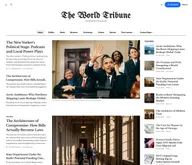
Tribune
Strongest hereTribune is the front page of a newspaper. Lead stories beside the day's picture, a Featured list at the edge, then your sections by topic, each in its own layout, under a masthead that folds away as the reader scrolls. Built for newspapers and multi-author magazines that publish several stories a day, and managed entirely from Ghost admin.
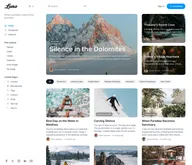
Luno
Strongest hereLuno is a blog that works like an app. A menu that stays open in a fixed sidebar, search a keystroke away, a light and dark switch beside your logo, and a homepage that opens with three featured stories as cover cards. Built for travel, lifestyle and product blogs whose readers expect an interface they already know, and managed entirely from Ghost admin.


Comparing options? Browse all premium Ghost themes side by side.
Get every theme in one bundle
The complete Luxe Themes bundle: every theme, one purchase.