 Luxe Themes
Ghost Code Injection: The Complete Guide
How Ghost code injection works: site vs post level, what it can and cannot change, loading order, and paste-ready examples for analytics, fonts, CSS, and JS.
Code injection lets you add HTML, CSS, and JavaScript to your Ghost site from the admin panel, without editing any theme files. It comes in two forms: site-wide, under Settings → Advanced → Code injection, and per post, in the editor sidebar. Header code prints inside the page’s head on every page. Footer code prints just before the closing body tag.
It survives theme updates and needs no file editing, which makes it the right tool for analytics, fonts, style tweaks, and small scripts. It cannot change templates or Ghost’s core behaviour. This guide explains how the mechanism works, the difference between site-level and post-level injection, what it can and cannot do, loading order, and paste-ready examples. It ends with a short table on when to edit the theme instead.
What Code Injection Is
Every Ghost theme has two fixed points where Ghost prints its own tags: one near the end of the page’s head, and one just before the end of the body. Ghost uses those points to print the canonical URL, meta description, Open Graph tags, structured data, and the Portal script. It appends whatever you have typed into code injection to the same output.
That is the whole mechanism. Your header snippet is printed at the first point, your footer snippet at the second. Because every page renders through the same layout, both run everywhere. It works on all Ghost(Pro) plans and every self-hosted install.
For the technical reader: the two points are the {{ghost_head}} and {{ghost_foot}} helpers, which every theme calls in its default.hbs layout, near the end of <head> and just before </body>.
Site-Level vs Post-Level
Site header / site footer lives under Settings → Advanced → Code injection. It runs on the homepage, posts, pages, tag and author archives, and the members pages Ghost renders. Use it for anything that should exist on the whole site.
Post header / post footer is in the editor. Open a post or page, open the settings sidebar (the gear icon), and scroll to Code injection. It runs only on that URL. Use it for a one-off embed, a landing page with its own styles, or a script you want to test on one post before rolling it out site-wide.
Post-level output is printed after site-level output, so a post-level style can override a site-level one without any specificity tricks.
What It Can and Cannot Do
Code injection can:
- Load third-party scripts (analytics, comments, ad tags, A/B tools, chat widgets).
- Load fonts and add any amount of CSS.
- Run JavaScript that reads and changes the rendered page: add a bar, move a button, wrap tables, open links in new tabs.
- Add meta tags, verification tags for Google Search Console or Bing, and link tags such as web app manifests.
Code injection cannot:
- Change Handlebars templates. You cannot add a new post template, change what the homepage query returns, or add a section that needs data Ghost did not already render. Those are theme edits. The Ghost blog theme guide explains what belongs in a theme.
- Change Ghost’s members, newsletter, or API behaviour.
- Run server-side code. Everything you add is client-side HTML, CSS, or JS.
- Target page types on its own. Site-level code runs everywhere. If you want something only on tag pages, check the classes on the body element in JavaScript, or scope your CSS to them. Ghost themes add one class per page type, such as
home-template,post-template, andtag-template.
Loading Order and Performance
Order inside a box is the order you type it, and header always runs before footer. Three practical rules:
- CSS and fonts go in the header. A stylesheet in the footer causes a flash of unstyled content.
- JavaScript that touches the page content goes in the footer, or in the header wrapped in a
DOMContentLoadedlistener, which waits until the page’s HTML has loaded. Footer code runs after the article HTML exists, so a script that looks up an element finds it. - Third-party scripts get
asyncordefer, so they don’t hold up rendering. Analytics never needs to block the page. Skip both attributes only when a script must run before the page paints (a consent manager is the usual example).
Every external script is a network request. Two or three are fine; ten will show up in your Core Web Vitals. If you find yourself pasting a hundred lines of CSS, you have outgrown code injection and should edit the theme.
A Content Security Policy is a header that tells the browser which sources a page is allowed to load from. If your self-hosted install sends one (a Content-Security-Policy header from Nginx or a CDN), injected scripts from new domains will be blocked until you add those domains to the policy. Ghost(Pro) does not ship a restrictive policy, so this only affects self-hosters who added one.
Practical Examples
The Ghost snippets library has tested, copy-paste versions of everything below with installation notes. The examples here show the pattern.
Analytics
Google Analytics 4 in the site header:
<script async src="https://www.googletagmanager.com/gtag/js?id=G-XXXXXXXXXX"></script><script> window.dataLayer = window.dataLayer || []; function gtag(){dataLayer.push(arguments);} gtag('js', new Date()); gtag('config', 'G-XXXXXXXXXX');</script>Privacy-first alternatives are one line each and can go in the header or footer:
<!-- Plausible --><script defer data-domain="yourdomain.com" src="https://plausible.io/js/script.js"></script>
<!-- Umami --><script defer src="https://cloud.umami.is/script.js" data-website-id="YOUR-WEBSITE-ID"></script>
The Ghost analytics setup guide compares these tools and covers what Ghost’s built-in analytics already tell you.
Custom Fonts
This goes in the header, with preconnect hints so the browser opens the connection before it needs the font file:
<link rel="preconnect" href="https://fonts.googleapis.com"><link rel="preconnect" href="https://fonts.gstatic.com" crossorigin><link href="https://fonts.googleapis.com/css2?family=Inter:wght@400;600;700&display=swap" rel="stylesheet"><style> body { font-family: 'Inter', system-ui, sans-serif; }</style>Keep it to two families and a handful of weights. The full version, with fallbacks and font-display handling, is in the custom Google Fonts snippet. Check your theme’s settings first. Many premium themes expose font choices in Ghost Admin, and a setting beats a snippet.
CSS Overrides
Ghost exposes the accent colour from Settings → Design as a CSS variable, so the cleanest overrides build on it:
<style>  /* Slightly darker accent on hover states */  a:hover { color: color-mix(in srgb, var(--ghost-accent-color) 80%, black); }
  /* Underline H2s in post content */  .gh-content h2 {    border-bottom: 2px solid var(--ghost-accent-color);    padding-bottom: .4rem;  }
  /* Hide the author card in the post footer */  .post-footer .author-card { display: none; }</style>
Selectors like .gh-content are theme-specific. Right-click the element, choose Inspect, and copy the class the theme actually uses. The accent colour tweaks snippet shows per-page and dark-mode variants. If you want the floating Portal button gone, the hide the Portal button snippet is two lines of CSS.
JavaScript: Open External Links in a New Tab
This goes in the footer, because it needs the article content to exist:
<script> document.querySelectorAll('.gh-content a[href^="http"]').forEach(function (a) { if (a.hostname !== location.hostname) { a.target = '_blank'; a.rel = 'noopener'; } });</script>Swap .gh-content for your theme’s content wrapper. The library version, with edge cases handled, is the external links in a new tab snippet. Other footer scripts need nothing more than a paste. The library has a reading progress bar, an auto-generated table of contents, a click-to-enlarge image lightbox, and a dark mode toggle for themes that lack one.
Post-Level: A Landing Page With Its Own Look
Say you have a “Start here” page that should hide the sidebar and widen the content. Open the page in the editor, open the settings sidebar, and put this in Post header:
<style> .sidebar { display: none; } .gh-content { max-width: 60rem; }</style>Nothing else on the site changes. The same box is the right place for a one-off embed script, such as a form builder or an interactive chart, that would be wasted weight on every other page.
Verification and Meta Tags
Search Console and Bing verification tags, a Pinterest claim, or a Mastodon rel="me" link all go in the site header:
<meta name="google-site-verification" content="YOUR-TOKEN"><link rel="me" href="https://mastodon.social/@you">Ghost already prints canonical, Open Graph, and Twitter card tags, so do not add duplicates. The Ghost SEO guide covers what Ghost outputs on its own.
Troubleshooting
Change not showing. Ghost(Pro) sits behind a CDN and your browser caches CSS, so hard-refresh (Cmd/Ctrl + Shift + R) or open a private window. Self-hosted sites with a caching layer (Cloudflare, Nginx cache) may need a purge.
Style ignored. Your selector is less specific than the theme’s, or the theme’s stylesheet is loading after your injected one. Make the selector more specific before reaching for !important, and remember post-level styles print after site-level ones.
Script errors. Open the browser console. The two usual causes are a script in the header that runs before the element exists, and a copy-pasted snippet that lost its closing tag. For the first, move the script to the footer or wrap it in DOMContentLoaded.
Something broke after a theme update. Code injection itself never changes on update, but the theme’s class names might. Re-inspect the element and update your selector.
Members-only content. Injected JavaScript runs for everyone; it cannot see gated content that Ghost did not render for the current member. Do not use it to hide paywalled text. That is what post visibility is for.
Code Injection vs Theme Editing
| Use code injection | Edit the theme |
|---|---|
| Analytics, pixels, verification tags | New page templates or post layouts |
| Fonts and CSS overrides | Changing what data a page shows |
| Small JS behaviours (links, TOC, progress bar) | Custom Handlebars helpers or partials |
| Third-party widgets and embeds | Navigation structure |
| Temporary banners and experiments | Anything more than ~100 lines |
Code injection is for additions and overrides that should survive updates. Theme edits are for structure. Premium themes reduce the need for both by exposing colours, fonts, layouts, and feature toggles as settings in Ghost Admin. Check what your theme already offers before writing code, and use the snippets library for the rest. If you run a developer blog, our Ghost themes for tech blogs page lists which of those settings matter most there.
Frequently Asked Questions
Where is code injection in Ghost Admin?
What is the difference between site header and site footer injection?
Can code injection change my theme's layout?
Does code injection survive theme updates?
Keep reading
Ghost Plugins: What to Use Instead
Ghost has no plugin system and doesn't need one: integrations, Zapier, code injection, APIs and themes cover the same jobs. Here is what to use for each.
What You Can Change in a Ghost Theme Without Code
Four layers of Ghost customisation, from settings to a custom theme, what each can and cannot change, and how to tell before buying which layer your idea needs.
Update a Ghost Theme Without Losing Your Settings
Ghost identifies a theme by the name of the zip you upload. Same name, and your settings survive the update. We tested what survives and what does not.
Ghost SEO: Built-in Features and What You Still Do
What Ghost does for search on its own, checked on a live site: sitemaps, structured data, canonicals, meta data, redirects, AI-search files, and your part.
Recommended Themes
Themes with at least one of the features this guide touches: SEO optimization, dark mode, membership pages and newsletter integration.
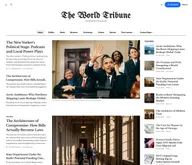
Tribune
Strongest hereTribune is the front page of a newspaper. Lead stories beside the day's picture, a Featured list at the edge, then your sections by topic, each in its own layout, under a masthead that folds away as the reader scrolls. Built for newspapers and multi-author magazines that publish several stories a day, and managed entirely from Ghost admin.
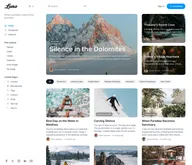
Luno
Strongest hereLuno is a blog that works like an app. A menu that stays open in a fixed sidebar, search a keystroke away, a light and dark switch beside your logo, and a homepage that opens with three featured stories as cover cards. Built for travel, lifestyle and product blogs whose readers expect an interface they already know, and managed entirely from Ghost admin.


Comparing options? Browse all premium Ghost themes side by side.
Get every theme in one bundle
The complete Luxe Themes bundle: every theme, one purchase.