 Luxe Themes
Customize the Members CTA on Gated Ghost Posts
Replace the fixed wording on Ghost's members-only post box with your own copy per tier, using Ghost's built-in code editor. Paste-ready snippet included.
When someone without access opens a members-only post on your site, Ghost shows a box that says “This post is for subscribers only” in place of the full post. The wording of that box is fixed. You can’t change it from Ghost Admin.
Ghost does let a theme replace the box with its own template (a partial named content-cta.hbs). You don’t need to edit your theme’s source to do this. You create the file in Ghost Admin’s built-in code editor, under Settings → Theme, then the … menu next to the active theme, then Edit code. Paste the snippet below and change the wording for each gating case. One line has to stay: the first line of the template ({{{html}}}) renders the post’s free preview. This guide explains what the box is, gives you the snippet, and walks through what each part of it does.
What the members CTA is
When a post’s access is restricted to members, paid members, or specific tiers, visitors without access don’t see the post body. Ghost swaps it for two things:
- The free preview: everything above the public preview divider in the editor, if you added one. The Ghost editor guide shows where that divider lives.
- A call-to-action box (“This post is for subscribers only”) with a signup or upgrade button.
The box already looks right on any well-built theme. Ghost injects base styles for it on every site with members enabled. Luxe themes style it further to match the theme’s typography and colors.
What you can’t change from Ghost Admin is the wording. Ghost fixes it. The phrasing is the same whether signing up is free or paid. There is no way to add your own pitch, mention pricing, or write different copy per tier.
Replace it with your own
Ghost themes are built from template files. Ghost checks your theme for one particular template for this box (a partial named content-cta.hbs). If it exists, Ghost renders it instead of the default box. Ghost Admin’s built-in code editor can create that file directly on your site, with no download, rebuild, or re-upload.
- In Ghost Admin, go to Settings → Theme, open the … menu next to the active theme, and choose Edit code. For a theme that isn’t active, go to Change theme → Installed, then open that theme’s … menu and choose Edit code.
- In the editor’s file list, click the + (new file) icon and enter
partials/content-cta.hbsas the file path. - Paste the snippet below. It mirrors Ghost’s own default template, so your site keeps the exact same look until you change the words.
- Edit the headings and button labels to taste, then click Save. The change is live immediately.
{{{html}}}<aside class="gh-post-upgrade-cta"> <div class="gh-post-upgrade-cta-content" style="background-color: {{@site.accent_color}}"> {{#has visibility="paid"}} <h2>This post is for paying subscribers only</h2> {{/has}} {{#has visibility="members"}} <h2>Sign up for a free subscription to keep reading</h2> {{/has}} {{#has visibility="tiers"}} <h2>This post is for subscribers on the {{tiers separator=", " lastSeparator=" and "}} only</h2> {{/has}} {{#if @member}} <a class="gh-btn" data-portal="account/plans" href="#/portal/account/plans" style="color:{{@site.accent_color}}">Upgrade your account</a> {{else}} <a class="gh-btn" data-portal="signup" href="#/portal/signup" style="color:{{@site.accent_color}}">Subscribe now</a> <p><small>Already have an account? <a data-portal="signin" href="#/portal/signin">Sign in</a></small></p> {{/if}} </div></aside>How the snippet works
- The first line renders the free preview. That line (
{{{html}}}) outputs the part of the post above the public preview divider. It must stay first. Your partial replaces Ghost’s entire gated output, so removing the line removes the preview too. - Each gating case gets its own heading. The three visibility blocks (
{{#has visibility="..."}}) match how the post is restricted: one for free-member posts, one for paid posts, and one for tier-restricted posts. Write different copy in each; this is the whole point. In the tiers block, the{{tiers}}helper prints the names of the tiers the post is limited to. - Signed-in members see an upgrade button instead of a signup button. The member check (
{{#if @member}}) handles a logged-in free member who opens a paid post. They get “Upgrade your account” and are taken straight to the plans view. - The buttons open Ghost’s standard membership modal, Portal. The
data-portalattributes wire each one up, so signup, sign-in, and plan selection all open there. - The class names keep the styling. Ghost (and your theme) already style the classes used in the snippet, so the box stays visually identical to the default. Change the words freely; leave the class names alone.
Surviving theme updates
Files created or edited through Edit code live in your site’s copy of the theme. Uploading a new theme version replaces that copy, including your partial. Keep the contents of your content-cta.hbs file somewhere handy and re-apply it after each update. It takes under a minute.
Troubleshooting
- A parse error mentioning
INVALIDwhen you save. The paste picked up invisible characters, which happens when copying from a rendered web page. Use the code block’s copy button above, or re-type the affected line. - The free preview no longer shows. The
{{{html}}}line was removed or moved. It must be the first line of the partial. - The box lost its styling. A class name was changed. Keep
gh-post-upgrade-cta,gh-post-upgrade-cta-content, andgh-btnexactly as they are.
Frequently Asked Questions
Can I change the wording on Ghost's members-only post box?
Why did my post's free preview disappear after adding a custom content-cta partial?
Will my custom members CTA survive a theme update?
Does the custom members CTA work with any Ghost theme?
Keep reading
Ghost Portal Guide: Settings, Links & Customization
How Ghost's Portal works and how to shape it: signup options, default billing cycle, the floating button, every Portal link and data attribute, translation.
Ghost Stripe Integration: Complete Setup
Ghost connects directly to Stripe for paid memberships. Learn how to set up Stripe, configure tiers, handle taxes, and manage subscriber billing.
Update a Ghost Theme Without Losing Your Settings
Ghost identifies a theme by the name of the zip you upload. Same name, and your settings survive the update. We tested what survives and what does not.
Ghost SEO: Built-in Features and What You Still Do
What Ghost does for search on its own, checked on a live site: sitemaps, structured data, canonicals, meta data, redirects, AI-search files, and your part.
Recommended Themes
Themes with at least one of the features this guide touches: membership pages and private posts.
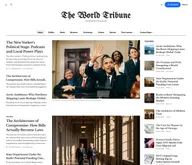
Tribune
Strongest hereTribune is the front page of a newspaper. Lead stories beside the day's picture, a Featured list at the edge, then your sections by topic, each in its own layout, under a masthead that folds away as the reader scrolls. Built for newspapers and multi-author magazines that publish several stories a day, and managed entirely from Ghost admin.
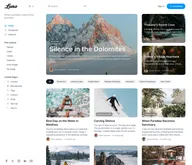
Luno
Strongest hereLuno is a blog that works like an app. A menu that stays open in a fixed sidebar, search a keystroke away, a light and dark switch beside your logo, and a homepage that opens with three featured stories as cover cards. Built for travel, lifestyle and product blogs whose readers expect an interface they already know, and managed entirely from Ghost admin.


Comparing options? Browse all premium Ghost themes side by side.
Get every theme in one bundle
The complete Luxe Themes bundle — every theme, one purchase.