 Luxe Themes
Ghost Portal Guide: Settings, Links & Customization
How Ghost's Portal works and how to shape it: signup options, default billing cycle, the floating button, every Portal link and data attribute, translation.
Every Ghost site has a part that you did not install and cannot restyle, and it is the part every subscriber uses. It is called Portal. It is the small window that opens when someone clicks Subscribe, the screen where they type an email and choose a plan, and the account page where they later change their plan or unsubscribe. Ghost adds it to every theme, so it looks and behaves the same whatever theme you run.
Because you will rely on it, it is worth understanding properly. This guide explains where Portal comes from, what each of its settings does, how to open any of its screens from your own buttons and links, what you can and cannot change about its appearance, how translation works, and how to read the handful of problems people run into, several of which turn out not to be Portal’s at all. The screenshots are from the admin of one of our demo sites, running Ghost 6, taken in August 2026.
What Portal is
Portal is a small application that Ghost loads on every page of your site as soon as memberships, tips, or recommendations are turned on. It draws itself inside its own frame and takes three things from your site automatically: your accent color, your publication icon and title, and your publication language. Your theme does not contain Portal. It only contains the links and buttons that open it.
The screens inside, in the order a member meets them:
- Sign up. An email field, a name field if you enable it, the plans you offer with monthly and yearly prices, the free option, and your signup notice.
- Sign in. Email only. Ghost emails a sign-in link and a one-time code you can type into the window. There are no passwords.
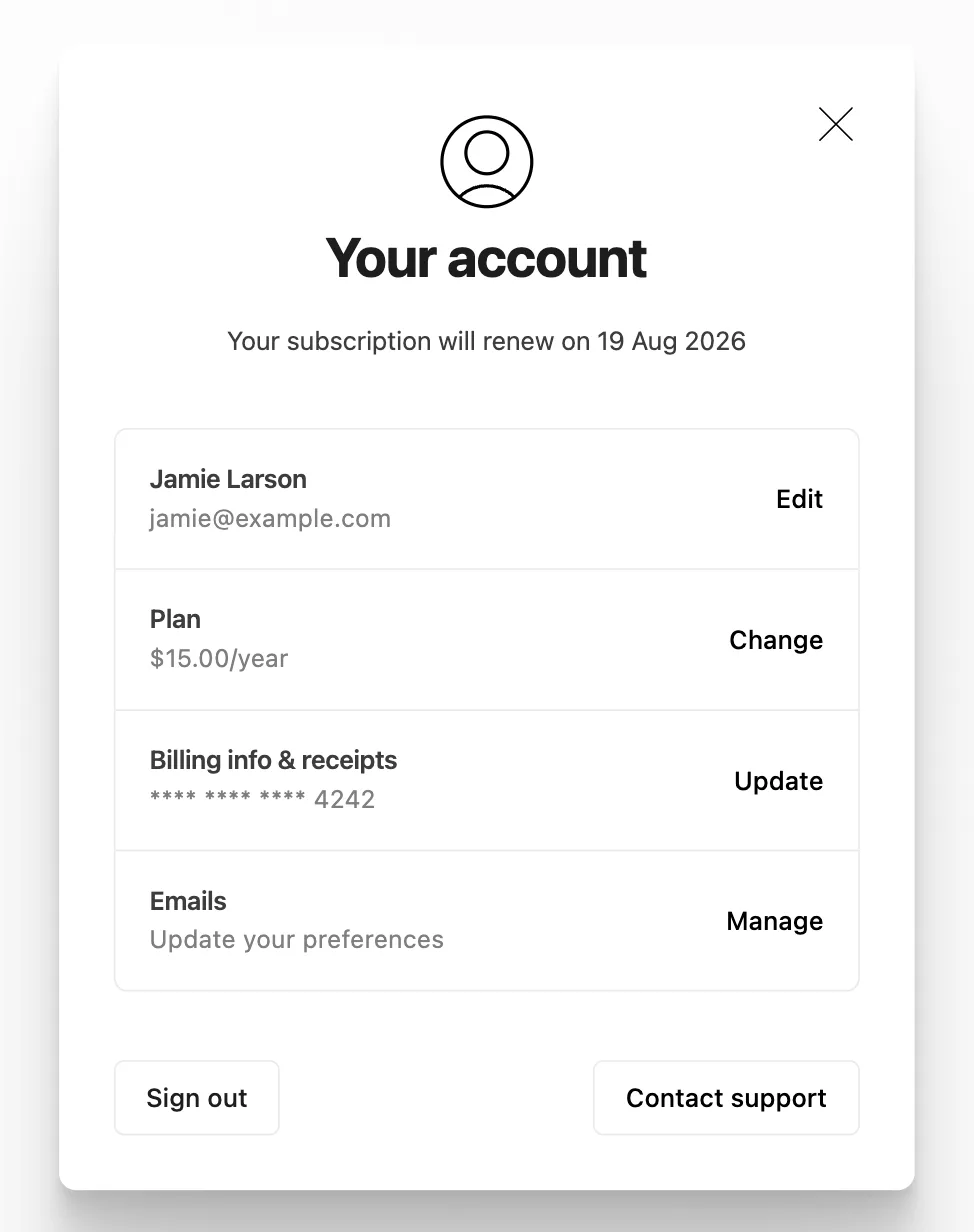
- Account. The member’s plan, billing details and receipts (handled by Stripe), their email address and name, newsletter preferences, a support contact, and sign out.
- Single-purpose screens for offers, gift subscriptions, tips, recommendations, and unsubscribing, each opened by its own link.
The round floating button in the corner of many Ghost sites is often what people think of as Portal. It is only Portal’s default trigger. You can turn it off without losing anything above.
The settings, one tab at a time
Everything lives in Settings → Membership → Signup portal → Customize. The window shows a live preview on the left, with tabs for the signup screen, the account page, and the list of links, and three settings tabs on the right.
Signup options
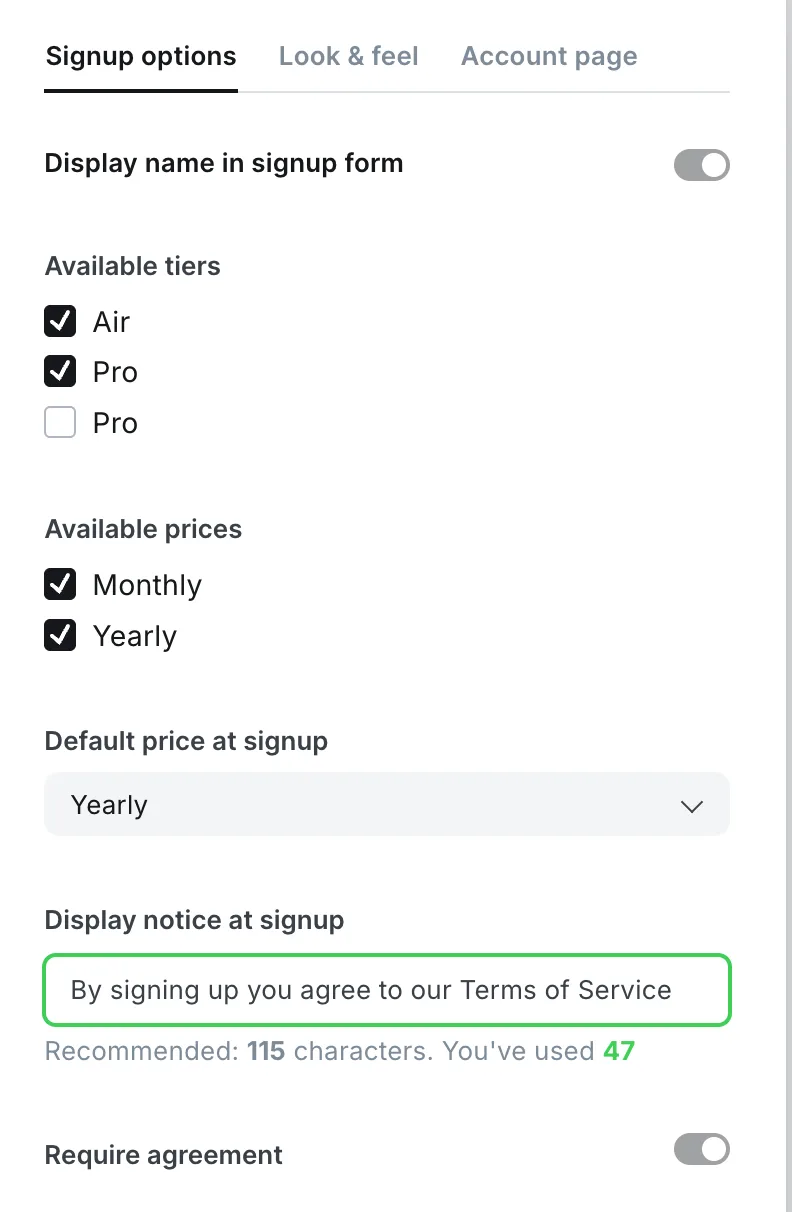
- Display name in signup form. Adds a name field. It is on by default. Leave it on if you will ever address subscribers by name in emails; turn it off if you want the shortest possible form.
- Available tiers. Which plans appear in the window. A paid plan has to exist and be active under Settings → Membership → Tiers, and Stripe has to be connected. Your free plan is listed here too, but only when signup is open to the public, and it appears in the window only while its box is ticked. Unticking a plan here does not archive it. Existing members keep it; new visitors simply do not see it.
- Available prices. Monthly, yearly, or both.
- Default price at signup. Which of the two is pre-selected. For a long time this needed a workaround; it is now a simple dropdown. Ghost’s default is yearly, presumably because it brings more revenue per member up front. Choose monthly if your readers are price-sensitive or your content is seasonal.
- Display notice at signup. A short line under the form, usually your terms and privacy links. It accepts basic formatting such as links. Ghost recommends at most 115 characters and rejects longer text.
- Require agreement. Turns the notice into a checkbox that must be ticked before signing up. Use it where the law asks for an explicit consent.
Look & feel
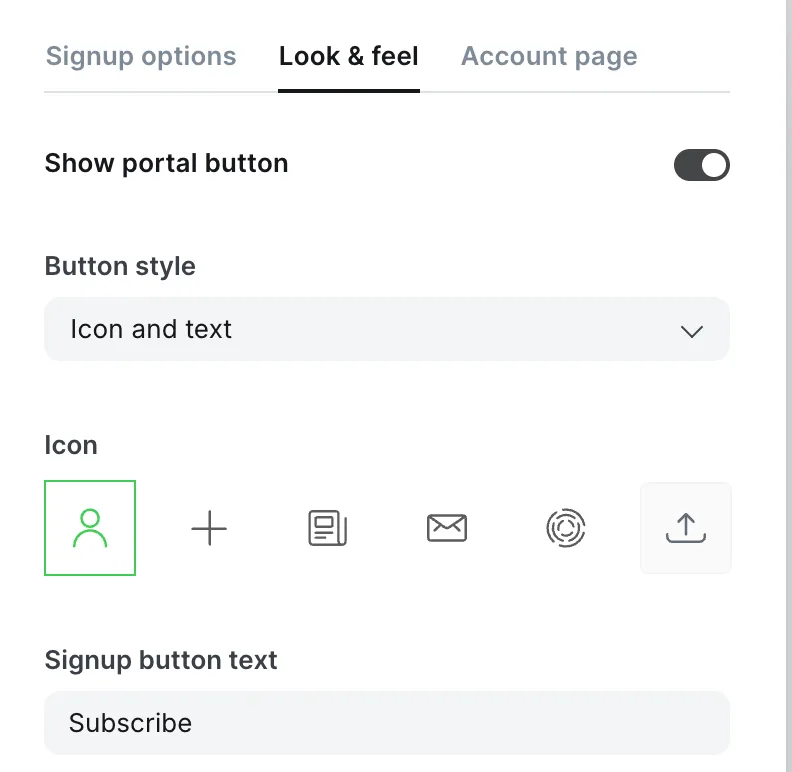
- Show portal button. The floating trigger, on or off. Many themes, including ours, have their own subscribe buttons and membership pages, so many publishers turn this off; Portal stays fully reachable through links. If you only want the button gone on certain pages, a landing page with its own form for example, our snippet for hiding the Portal button covers that.
- Button style. Icon and text, icon only, or text only.
- Icon. Five built-in choices or your own upload. Ghost’s help recommends a square SVG, PNG, or JPG of up to 60 by 60 pixels.
- Signup button text. The label on the floating button. “Subscribe” by default.
There is no color picker here. The button and the window both follow your site’s accent color.
Account page
One field: the support email address. It powers the Contact support button on the account page. By default it is a no-reply address at your domain, which means a member’s reply goes nowhere. Set it to a mailbox someone reads before you take your first paid subscriber.
Opening Portal from your own links and buttons
This is what themes are built on. Every Portal screen has a web address you can link to, and an equivalent attribute you can put on any element. Ghost lists both, including the codes for your own plans, under the Links tab of the Portal preview.
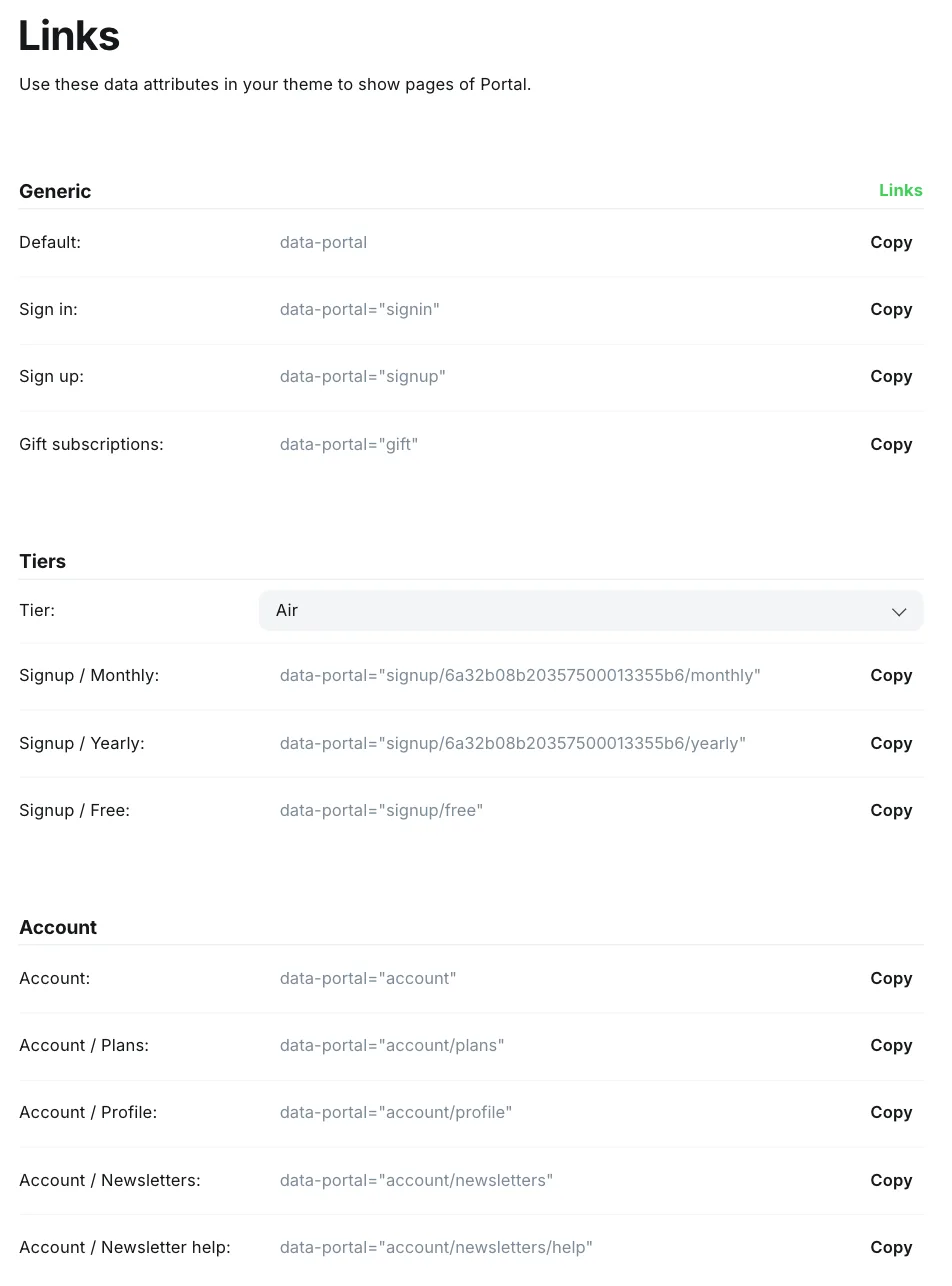
| Screen | URL hash | Data attribute |
|---|---|---|
| Default (signup, or account if signed in) | #/portal | data-portal |
| Sign up | #/portal/signup | data-portal="signup" |
| Free signup directly | #/portal/signup/free | data-portal="signup/free" |
| One tier, monthly | #/portal/signup/TIER_ID/monthly | data-portal="signup/TIER_ID/monthly" |
| One tier, yearly | #/portal/signup/TIER_ID/yearly | data-portal="signup/TIER_ID/yearly" |
| Sign in | #/portal/signin | data-portal="signin" |
| Account home | #/portal/account | data-portal="account" |
| Change plan | #/portal/account/plans | data-portal="account/plans" |
| Edit profile | #/portal/account/profile | data-portal="account/profile" |
| Newsletter preferences | #/portal/account/newsletters | data-portal="account/newsletters" |
| Gift a subscription | #/portal/gift | data-portal="gift" |
| Tips & donations | #/portal/support | data-portal="support" |
| Recommendations | #/portal/recommendations | data-portal="recommendations" |
| A specific offer | #/portal/offers/OFFER_ID | — (Offers also get their own short URL under Settings → Offers) |
Both forms work from anywhere on your site:
<!-- A plain link: works in navigation, posts, and footers --><a href="#/portal/signup">Subscribe</a>
<!-- A data attribute: any element, no URL change --><button data-portal="signup/TIER_ID/yearly">Go annual</button>
Two behaviors are worth knowing. First, Portal checks who is asking. A member who is already signed in and clicks a signup or sign-in link is taken to their account page instead. Second, a link to a specific plan skips the signup screen altogether. Portal shows a brief loading state and sends the reader straight to Stripe’s checkout for that plan and billing period, where they enter their email and card. That is how pricing pages with their own “Choose this plan” buttons are wired. A signed-in member who clicks one starts an upgrade instead.
You will find the plan codes by choosing a plan in the dropdown on the Links tab. They are long strings of letters and numbers, not the plan’s name. The same tab offers a link for free signup, useful for a “free newsletter” button that skips the paid plans, and a switch in the top right that shows the list as links or as attributes.
What you can and cannot change about how it looks
Portal draws itself inside its own frame, so your theme’s styles and any CSS you add through code injection cannot reach inside it. What Portal takes from you is your accent color, icon and title, the names, descriptions and benefits of your plans, the signup notice, and the button text. That is the whole surface.
The floating button is the exception. It sits in your page rather than inside the window, so you can hide it or move it with CSS, which is exactly what the hide-the-button snippet does.
If you want signup and account pages that look like your site, the answer is not to restyle Portal. It is to give your theme its own pages, and let Portal handle only the final step. That is how the membership pages in our themes work. Senna and Luno, for example, include sign-up, sign-in, and membership pages whose buttons are the plan-specific links above, so a reader sees a designed pricing page and goes from there straight to checkout. The membership setup guide covers the plans and Stripe side of that. If you are still choosing a theme, every Luxe theme includes these pages; the Ghost themes hub is the place to compare them.
Translating Portal
Portal translates itself. Set Settings → Publication language to your language and the window switches automatically. Ghost ships Portal translations for more than sixty languages, from Afrikaans to Traditional Chinese, and there is no longer a switch to turn this on. If a phrase looks untranslated in a less common language, the translation may simply be incomplete; the translations are maintained by volunteers.
A common confusion is that the text people want translated is often not Portal’s. The message on a members-only post (“This post is for paying subscribers only”), the subscribe button in your header, the placeholder in a signup form: these belong to your theme. A theme translates them through its own language files, and the members-only message through a small template the theme can override. If your theme has no translation for your language, those phrases stay in English no matter what the publication language says. Every Luxe theme ships translation files for the text it shows; each theme’s documentation lists the languages.
The “Powered by Ghost” line
The Portal window carries a small “Powered by Ghost” link on its main screens. People have asked to remove it for years, and the answer has not changed: there is no setting for it, and because it sits inside Portal’s own frame, CSS cannot hide it either. Someone hosting their own Ghost could serve a modified copy of Portal, which is unsupported and breaks on updates. We treat the line as the price of a free, open-source membership system and leave it.
When Portal misbehaves
Portal says “This site is invite-only, contact the owner for access.” This is not a Portal setting. It comes from Settings → Access, under “Who should be able to subscribe to your site?”, set to Invite-only. Switch it to Public (labeled “Anyone can sign up” in earlier Ghost 6 versions) to bring the signup form back. “Nobody” is different: it turns memberships off entirely, so Portal stops loading, or shows “Memberships unavailable” if tips or recommendations keep it alive. Our demo sites are intentionally invite-only, so opening Portal on any of them shows exactly this screen.
The floating button is missing. Either the Show portal button setting is off, or memberships are disabled under Settings → Access. If the button is on and still invisible, a theme or code-injection rule is hiding it. For the technical reader: the container is #ghost-portal-root.
A plan does not appear at signup. It is unticked under Available tiers, it is archived, it has no price for the billing period you are showing, or Stripe is not connected yet. Paid plans only appear once Stripe is live.
“Failed to send magic link email.” Portal worked; your site’s email did not. On a self-hosted site that means the email settings in the configuration file. Our guide to sending Ghost email without Mailgun has a working setup and the common errors.
“Failed to initialize: TypeError: Failed to fetch”, or a blank window. Portal cannot reach your site’s members API. The usual causes are a CDN, proxy, or security plugin blocking the /members/api/ path, a wrong site address in the configuration, or an aggressive ad blocker or privacy extension on the visitor’s side. A separate banner, “Cookies must be enabled in your browser”, appears when the visitor’s browser has cookies turned off.
Members cannot change their billing details. The account page hands billing to Stripe’s own customer portal. If Stripe is not connected correctly, start with the Stripe integration guide.
The Subscribe button in the header is still in English after translating. That button belongs to the theme, not to Portal. See the translation section above.
Where Portal stops and your theme starts
Portal handles the transaction: email, plan, payment, account. Everything that persuades a reader to get that far is your theme’s job: the pricing page, the list of benefits, the prompt at the end of a post, the archive they browse while deciding. That is where readers actually decide. Set Portal up once, turn the floating button off if your theme already asks for the subscription, and spend your attention on the pages that lead to it. The members CTA guide covers the prompt at the end of a post; the membership setup guide covers plans, access, and the pricing page.
Frequently Asked Questions
What is Ghost Portal?
How do I change the Portal signup button text or hide the button?
How do I link to a specific Portal screen from my theme?
Can I translate Ghost Portal?
Keep reading
Customize the Members CTA on Gated Ghost Posts
Replace the fixed wording on Ghost's members-only post box with your own copy per tier, using Ghost's built-in code editor. Paste-ready snippet included.
Ghost Stripe Integration: Complete Setup
Ghost connects directly to Stripe for paid memberships. Learn how to set up Stripe, configure tiers, handle taxes, and manage subscriber billing.
Ghost Analytics: Built-In and Third-Party
Set up Ghost 6 native analytics (Tinybird), fix the empty Traffic dashboard on self-hosted installs, and add GA4 or privacy-focused tools via code injection.
Ghost Code Injection: The Complete Guide
How Ghost code injection works: site vs post level, what it can and cannot change, loading order, and paste-ready examples for analytics, fonts, CSS, and JS.
Recommended Themes
These themes excel at the features discussed in this article.



Comparing options? Browse all premium Ghost themes side by side.
Get every theme in one bundle
The complete Luxe Themes bundle — every theme, one purchase.