 Luxe Themes
Ghost Editor: Cards, Formatting & Publishing
How the Ghost editor works: formatting, the card menu for images, galleries, embeds and callouts, and how to preview, schedule and publish a post or newsletter.
Ghost Editor Overview
Ghost’s editor produces clean, semantic HTML — no shortcodes, no proprietary markup, no database serialization. If you ever leave Ghost, your content exports as standard HTML that works anywhere.
The editor uses a card system: type / on an empty line to insert content blocks (images, galleries, callouts, embeds, code). Each card is self-contained, which means you can rearrange content by dragging blocks. This is simpler than WordPress’s Gutenberg (fewer options, less configuration) and more capable than Medium’s editor (more card types, full code access).
One thing that surprises new users: your theme controls how cards render. A gallery card in Shiro displays differently than in Luno. Your content is portable; the presentation is theme-controlled. This matters — the same post can look amateur or professional depending on your theme’s card styling.
Text Formatting
Ghost’s text formatting is intentionally minimal. You get what you need for professional publishing without the clutter.
Inline Formatting
Select text to reveal the formatting toolbar:
- Bold —
Ctrl/Cmd + B - Italic —
Ctrl/Cmd + I - Link —
Ctrl/Cmd + K - Heading (H2, H3, H4) — select text and choose heading level
- Quote — blockquote styling
- Strikethrough — crossed-out text
- Highlight — colored background
- Superscript — small raised text
- Code — inline monospace formatting
Block-Level Formatting
Type at the start of a new line:
##→ Heading 2###→ Heading 3####→ Heading 4>→ Blockquote-or*→ Unordered list1.→ Ordered list```→ Code block---→ Horizontal divider
Headings
Ghost supports H2 through H4 in the editor. H1 is reserved for the post title — using H1 in your content creates duplicate heading hierarchy, which hurts SEO.
Structure your headings logically:
H1: Post Title (set in post settings) H2: Major Section H3: Subsection H4: Detail H2: Next Major SectionSome themes build a table of contents from your H2 and H3 headings. In Luno, for example, adding the internal tag #table-of-content to a post shows one in the post’s sidebar.
Editor Cards
Cards are Ghost’s content blocks. Access them by typing / on a new line or clicking the + button, then keep typing to search the menu for the card you want.
Visual Cards
Image — single image upload with alt text, caption, and width options (regular, wide, full). Always add descriptive alt text for accessibility and SEO.
Gallery — multiple images in an auto-layout grid. Upload 2-9 images and Ghost arranges them in a responsive mosaic. Themes like Nio render galleries using PhotoSwipe for a lightbox experience.
Video — upload video files directly. Ghost creates an HTML5 video player with play/pause, volume, and fullscreen controls. No external hosting required for short clips.
Audio — upload audio files for podcasts, interviews, or music. Creates a native HTML5 audio player.
File — upload any file for reader download. Shows filename, size, and a download button.
Content Cards
Callout — highlighted text box with an emoji icon. Customize the emoji and background color. Callouts break up long text and draw attention to key points — use them for tips, warnings, or “TL;DR” summaries. Overusing them dilutes their impact; one or two per post is the sweet spot.
Toggle — collapsible content section with a clickable header. The most underused card in Ghost. Toggles are excellent for FAQs, technical reference sections, and supplementary details that would otherwise bloat your post. Collapsed content is still indexable by search engines (rendered in HTML, hidden via CSS), so it counts for SEO.
Product — showcase a product with image, title, description, star rating, and a CTA button. Essential for reviews, affiliate content, and recommendation lists. The star rating and button give it a commercial feel that regular text can’t match.
Header — large text with background color, button, and optional subheading. Creates a visual section break. Use it to separate major content sections or to create an inline call-to-action mid-post.
Embed Cards
Bookmark — paste a URL and Ghost fetches the page’s title, description, thumbnail, and favicon to create a rich link preview card. Works with any URL.
Embed — paste URLs from supported services for rich embeds:
- Twitter/X — displays the full tweet with media
- YouTube — embedded video player
- Spotify — track or playlist player
- CodePen — interactive code demo
- Vimeo, SoundCloud, TikTok — native embeds
Ghost recognises links from many embed providers through oEmbed. Paste the URL on a new line.
Advanced Cards
HTML: inject raw HTML into your post. Use for custom widgets, third-party embeds, or anything Ghost’s cards don’t cover natively. Note: JavaScript in HTML cards runs on the published page but not in the editor preview.
Markdown: write Markdown within a card block. Useful if you prefer Markdown syntax for specific sections but want to use the visual editor for the rest.
Email content: content that appears only in the email version of your post, not on the web. Insert subscriber-only calls-to-action or bonus content within a publicly visible post.
Call to action: a box with text and an optional image and button. You choose whether it shows on the web, in the email or both, and whether public visitors, free members or paid members see it.
Public preview: marks the point where content becomes gated (type /paywall to find it). Everything above is public; everything below requires the access level you set in post settings. See our membership guide for details on content gating.
Embeds and Integrations
Supported Embed Providers
Paste any of these URLs on a new line for a rich embed:
| Provider | Example URL | What Renders |
|---|---|---|
| YouTube | youtube.com/watch?v=... | Video player |
| Twitter/X | twitter.com/user/status/... | Full tweet |
| Spotify | open.spotify.com/track/... | Audio player |
| CodePen | codepen.io/user/pen/... | Interactive demo |
| Vimeo | vimeo.com/... | Video player |
| GitHub Gist | gist.github.com/... | Code snippet |
| SoundCloud | soundcloud.com/... | Audio player |
| TikTok | tiktok.com/@user/video/... | Video embed |
instagram.com/p/... | Post embed |
Bookmark Cards vs Embeds
If Ghost doesn’t recognize a URL as an embeddable service, it falls back to a bookmark card — a rich preview with title, description, and thumbnail. Bookmark cards work for any URL and are a reliable way to link to external content with visual context.
Publishing Workflow
Post Settings
Click the gear icon in the top-right corner to open post settings:
- Title and slug — the URL-friendly version of your post title
- Publish date — set or schedule a future publication date
- Tags — categorize your post (primary tag determines URL structure)
- Featured image — the hero image shown in post lists and social shares
- Excerpt — custom description for post lists and SEO
- Authors — assign single or multiple co-authors
- Access — Public, Members, Paid, or Specific Tier
- SEO settings — custom meta title and description
- Social cards — custom images and text for Twitter and Facebook shares
- Code injection — per-post custom CSS or JavaScript
Publishing Options
When you click Publish, Ghost shows a confirmation panel with options:
- Publish and send — post goes live on your website and is emailed to your selected audience
- Publish only — appears on your website with no email
- Send only — email-only delivery, no web publication
- Schedule — set a future date and time for automatic publication
Drafts
Ghost auto-saves your work continuously. Close the editor at any time — your draft is preserved. Access drafts from the post list by filtering for “Drafts” status.
Drafts are invisible to readers. Only published posts appear on your site. This means you can work on multiple posts simultaneously without worrying about accidental publication.
Revisions
Ghost maintains post revision history — view previous versions and restore if needed. This saves you when you accidentally delete a section or want to compare current content with an earlier draft. Access revisions from the post settings sidebar.
Editor Keyboard Shortcuts
| Action | macOS | Windows/Linux |
|---|---|---|
| Bold | Cmd + B | Ctrl + B |
| Italic | Cmd + I | Ctrl + I |
| Link | Cmd + K | Ctrl + K |
| Heading 2 | Cmd + Alt + 2 | Ctrl + Alt + 2 |
| Heading 3 | Cmd + Alt + 3 | Ctrl + Alt + 3 |
| Quote | Cmd + Shift + . | Ctrl + Shift + . |
| Unordered list | Cmd + Shift + 8 | Ctrl + Shift + 8 |
| Ordered list | Cmd + Shift + 7 | Ctrl + Shift + 7 |
| Save draft | Cmd + S | Ctrl + S |
| Preview | Cmd + P | Ctrl + P |
| Undo | Cmd + Z | Ctrl + Z |
| Redo | Cmd + Shift + Z | Ctrl + Shift + Z |
| Insert card | Type / on empty line | Type / on empty line |
| Hard break | Shift + Enter | Shift + Enter |
How Your Theme Affects Editor Content
Ghost themes control how every card renders. This isn’t cosmetic — it affects whether readers engage with your content or bounce.
Galleries are the most theme-dependent card. Without a lightbox, a gallery is a static grid of images. Themes with one, such as Ghost’s default theme Source and Nio, let readers click to view full-size images with swipe navigation. If your content is image-heavy, your theme’s gallery implementation matters more than almost any other feature.
Code blocks render as plain monospace text unless your theme includes syntax highlighting. Shiro includes highlight.js for colored, language-aware code display. For themes without it, you can add highlighting via code injection.
Table of contents is not a built-in Ghost feature, so themes must implement it. Luno builds a sidebar TOC from your H2 and H3 headings, with active section highlighting, on any post tagged #table-of-content. For other themes, you can add one with our table of contents snippet.
Toggle cards look functional in most themes but animate smoothly (with transition effects on expand/collapse) only in themes that add custom CSS for the .kg-toggle-card element.
The takeaway: write your content once, but test how it looks in your actual theme. What looks good in the editor preview may look different on the published page. If long-form writing is most of what you publish, our Ghost themes for writers page compares the ones built around reading.
Common Questions
Can I use Markdown in Ghost’s editor?
Yes, in two ways. First, Markdown shortcuts work inline — type **bold** and it converts automatically. Second, insert a Markdown card for sections where you prefer pure Markdown syntax. Ghost’s editor also supports pasting Markdown content, which it converts to visual blocks automatically.
Can I write in Ghost and publish elsewhere?
Ghost posts can be exported as JSON or HTML. You can also use the Content API to pull your posts into any frontend. See our headless CMS guide for decoupled architectures.
Can multiple people edit the same post?
Ghost doesn’t support real-time collaborative editing (like Google Docs). If two people open the same post, the last save wins. For team workflows, use post assignments and the “Draft” → “In review” → “Published” status progression.
How do I add custom CSS to a single post?
Use the per-post code injection in post settings (gear icon → Code injection). Add a <style> tag with your CSS. It only applies to that specific post. For site-wide custom CSS, use Settings → Code injection.
Can I import content from WordPress or Substack?
Yes. Ghost has built-in importers for both platforms. For WordPress, export your content as XML and use Ghost’s importer. For Substack, use Ghost’s dedicated Substack migration tool. Both handle content, images, and redirects.
Frequently Asked Questions
What is the Koenig editor in Ghost?
What cards are available in the Ghost editor?
What Markdown shortcuts work in the Ghost editor?
Can I embed content or use snippets in the Ghost editor?
Keep reading
Running Ghost in Another Language, Including RTL
One setting changes the language of a Ghost site, but three layers decide what actually changes: Ghost, the theme and your content. We switched one to German.
Stopping Spam Signups on a Ghost Site
What spam signups do to a Ghost site, what Ghost already blocks on its own, and what to add in front of it. We tested the built-in limit on our own site.
Ghost ActivityPub: The Social Web, Set Up and Fixed
How Ghost's social web works, how to switch it on for Ghost(Pro) and self-hosted sites, the hosted service limits, and why the Network tab fails on some setups.
Ghost Newsletters Without Mailgun: Real Options
Self-hosted Ghost only sends newsletters through Mailgun. What SMTP can and can't do, how Amazon SES and Postmark fit, what the proxies cost, and what to pick.
Recommended Themes
Themes with at least one of the features this guide touches: multiple post layouts, photo galleries and table of contents.
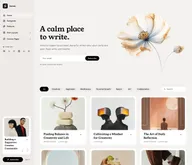
Senna
Strongest hereSenna is writing on paper. A warm paper ground, white cards resting on it and a serif carrying the headlines, with the navigation in a sidebar that stays beside your work instead of above it. Built for writers, newsletters and small magazines where the words come first, and managed entirely from Ghost admin.
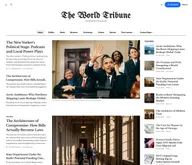
Tribune
Strongest hereTribune is the front page of a newspaper. Lead stories beside the day's picture, a Featured list at the edge, then your sections by topic, each in its own layout, under a masthead that folds away as the reader scrolls. Built for newspapers and multi-author magazines that publish several stories a day, and managed entirely from Ghost admin.
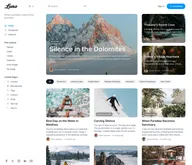
Luno
Strongest hereLuno is a blog that works like an app. A menu that stays open in a fixed sidebar, search a keystroke away, a light and dark switch beside your logo, and a homepage that opens with three featured stories as cover cards. Built for travel, lifestyle and product blogs whose readers expect an interface they already know, and managed entirely from Ghost admin.
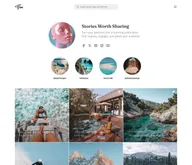
Flow
Strongest hereFlow is a profile page for a creator. Your photo, a line about you and your links at the top, a row of round highlights for your topics, and your posts as a square grid, edge to edge. The menu waits behind one button so nothing competes with the pictures. Built for creators and communities whose readers arrive from social media, and managed entirely from Ghost admin.
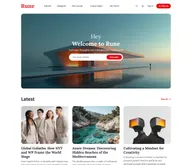
Rune
Strongest hereRune is an editor's front page. A cover-image welcome with one thing to do, then the latest stories, your Editor's Picks as tall cover cards, one topic you highlight, and the team behind it. Built for digital magazines where someone decides what goes on top, and managed entirely from Ghost admin.
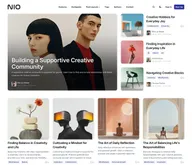
Nio
Strongest hereNio is a grid of squares. One featured story as a large photo card, then your posts as square cards four across, a band for the topic you highlight, and a row of your authors. Every image sits in the same frame, so a page of mixed pictures stays in order. Built for studios, portfolios and design blogs, and managed entirely from Ghost admin.
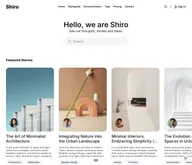
Shiro
Strongest hereShiro starts with a search. Your name, one line, and a search field where a hero usually goes, then your featured stories as portrait cards, in one of seven color schemes. Nine ways to open a post and membership pages inside the theme. Built for minimal magazines and archives that readers search rather than browse, and managed entirely from Ghost admin.


Comparing options? Browse all premium Ghost themes side by side.
Get every theme in one bundle
The complete Luxe Themes bundle: every theme, one purchase.