 Luxe Themes
How to Migrate from WordPress to Ghost
Step-by-step WordPress to Ghost migration: what transfers, what does not, and how to handle images, redirects, SEO, and subscriber lists without losses.
Moving From WordPress to Ghost
WordPress to Ghost is the most common CMS migration path. Ghost includes a WordPress migrator that takes the standard WordPress XML export and handles the bulk of the move. Not everything transfers on its own, though. The same surprises come up for most people after import: broken images, missing featured images, unassigned tags, leftover shortcode text, and oversized imports that fail outright.
This guide walks through the migration step by step. It covers what transfers and what does not, a checklist to work through before you export, and then images, redirects, and subscribers. It ends with the fix for each of those post-import problems, so none of them catch you unprepared.
What Transfers
Ghost’s built-in migrator converts a WordPress XML export into Ghost content. Here is what comes across:
| Content | Transfers? | Notes |
|---|---|---|
| Posts | Yes | Standard posts with content, title, slug, status |
| Pages | Yes | Static pages |
| Images | Yes | Inline and featured images are transferred |
| Tags | Yes | WordPress tags are preserved |
| Categories | Partial | Converted to tags; first category becomes primary tag |
| Authors | Yes | Author names and attributions preserved |
| Post dates | Yes | Published and created dates maintained |
| Post status | Yes | Published and draft states preserved |
| Excerpts | Yes | Custom excerpts transfer |
What Does Not Transfer
This is the list to plan around. Know these gaps before you start:
| Content | Why Not |
|---|---|
| Comments | Ghost does not import WordPress comments. Use Ghost’s native comments (Ghost 5.0+) or migrate to Disqus/Cove separately. |
| Custom fields / meta | WordPress custom fields and post meta are not included in the export. |
| Uncommon shortcodes | Ghost’s migrator handles common shortcodes ([caption], [audio], [code], most [vc_] and [et_] markup), but uncommon and plugin-specific shortcodes are not rendered — they appear as raw bracketed text. |
| Plugins / widgets | Plugin functionality does not transfer. Find Ghost alternatives or use code injection. |
| Theme / design | WordPress themes cannot be ported. Choose a Ghost theme or build a custom one in Handlebars. |
| Custom post types | WordPress CPTs are not exported by the migration tool. |
| PDFs / audio / non-image files | Only images transfer. Move other media manually. |
| Forms | WordPress forms (Gravity Forms, Contact Form 7, etc.) must be recreated using TypeForm, Google Forms, or similar. |
| User passwords | User accounts transfer but passwords do not. All users must set new passwords in Ghost. |
| E-commerce data | WooCommerce products, orders, and customer data do not transfer. |
| Scheduled posts | Transfer but may need verification — Ghost handles scheduling differently. |
Pre-Migration Checklist
Before starting the migration:
1. Audit Your Content
Review your WordPress content for:
- Shortcodes: Search your posts for
[to find shortcodes that need manual conversion - Custom fields: Identify any post meta used in your theme display
- Plugin-dependent content: Content generated by plugins (tablepress tables, gallery plugins, etc.) will not render
- Categories vs tags: WordPress categories become Ghost tags. Decide whether that structure works for you, or reorganize before export
2. Clean Up WordPress
A cleaner source produces a cleaner migration:
- Delete spam, draft, and low-quality posts you no longer want
- Convert important categories to tags (since categories become tags in Ghost anyway)
- Update broken internal links
- Remove plugin-generated content from posts where possible
3. Choose Your Ghost Setup
Ghost(Pro) is Ghost’s own hosted service. Self-hosted means you run Ghost on your own server. Decide between them before migrating:
- Ghost(Pro): Publisher plan ($29/month) minimum for custom themes and memberships
- Self-hosted: VPS ($4-6/month) + Mailgun for email delivery
4. Choose a Ghost Theme
Have your theme ready before importing content. That way you can see how your migrated content looks immediately after import.
Step-by-Step Migration
Step 1: Export Your Content From WordPress
Ghost’s migrator works from the standard WordPress export. No plugin is required:
- In WordPress, go to Tools → Export
- Select All content and download the XML file
Older guides describe a Ghost WordPress export plugin that generated a JSON file. The current official path is the built-in migrator with the XML export.
Step 2: Import Into Ghost
- In Ghost Admin, go to Settings → Advanced → Import/Export
- Choose the WordPress migrator and enter your WordPress site’s public URL
- Upload the XML file from Step 1
- Review the import preview, then click Import content
Two hard limits apply. The migrator supports XML files up to 100MB and up to 2,500 posts. Larger sites need a different route: the troubleshooting section below covers splitting the import, and Ghost also publishes open-source command-line migration tools. Ghost(Pro) customers can hand large migrations to Ghost’s migrations team.
Review the import summary for errors or skipped items. Common ones:
- Duplicate slugs: If a post and a page share the same slug (the part of the URL that identifies them), one will be renamed
- Image references: Inline images should transfer, but verify they load correctly
- Date formatting: Dates should carry over, but check a few posts
Step 3: Verify Your Content
After importing, check:
- Open five to ten posts and verify the content renders correctly
- Check that images load (both inline and featured)
- Verify author attributions are correct
- Confirm tags are assigned properly
- Check that post dates are accurate
If something looks wrong, the troubleshooting section below covers the five problems that come up most often.
Step 4: Handle Images
Images are the most common casualty of WordPress migrations, so treat them as their own project. The question that decides everything is where your image URLs point after import.
- Externally hosted images (a CDN, another domain) keep loading from the original source
- Images hosted on your WordPress install should transfer during import, but often still point at
yourolddomain.com/wp-content/uploads/...
The image-migration checklist:
- Inspect image URLs in 10 or more imported posts (right-click the image and copy its address). Images on your own Ghost site have URLs that start with
/content/images/ - If URLs point at your old WordPress domain, keep that domain alive and serving files until every image is re-hosted. The day the WordPress hosting lapses, every image returns a 404 (not found) error
- Self-hosted Ghost: copy the WordPress
wp-content/uploadsdirectory into Ghost’scontent/imagesdirectory, then update image paths in your content to match - Check featured images separately. They go missing far more often than inline images (see troubleshooting below)
- Check how images render in your theme. Imported
<img>tags carry WordPress’s markup, not Ghost’s responsive image sizes, so review how they display at different screen sizes - Re-test after enabling SSL. A common report is image links breaking on the switch to HTTPS when paths were relative or hardcoded to
http://
Step 5: Set Up Redirects
If your URL structure changes between WordPress and Ghost, you need redirects. A 301 redirect is a permanent forward from an old address to a new one. Visitors land on the right page, and search engines carry the old page’s ranking across to the new URL. For an established site this is not optional. WordPress and Ghost disagree about URL structure in at least two default places: date-based permalinks and category archives.
Ghost reads redirects from a file (redirects.yaml) that you upload under Settings → Labs in Ghost Admin. A realistic starter file for a WordPress move:
301: # Date-based permalinks: /2023/05/17/post-slug/ -> /post-slug/ ^\/[0-9]{4}\/[0-9]{2}\/[0-9]{2}\/(.*): /$1 # Month-based permalinks: /2023/05/post-slug/ -> /post-slug/ ^\/[0-9]{4}\/[0-9]{2}\/(.*): /$1 # Category archives -> Ghost tag pages /category/news/: /tag/news/ /category/reviews/: /tag/reviews/ # One-off URL changes /old-wordpress-url/: /new-ghost-url/Each rule is a pattern (a regular expression, JavaScript flavor) that can match many URLs at once, and $1 inserts whatever the pattern captured. Test your patterns at regex101 before uploading. Changes take effect as soon as the file uploads.
Two caveats worth knowing:
- Plain-ID permalinks (
/?p=123) are query strings, not paths, so pattern rules will not catch them. If your site still uses them, switch WordPress to pretty permalinks before migrating so there is a slug to redirect. - Author URLs often need no redirect: both platforms use
/author/username/.
Step 6: Update DNS
Point your domain from your WordPress host to Ghost:
- Ghost(Pro): Update DNS records as instructed in Ghost Admin
- Self-hosted: Update DNS A record to your new server’s IP
Step 7: Import Subscribers
If you had an email list on WordPress (via Mailchimp, ConvertKit, etc.):
- Export subscribers as CSV from your email tool
- In Ghost Admin, go to Members → Import
- Upload the CSV with email addresses
- Free subscribers import directly; paid subscribers must re-subscribe through Ghost’s Stripe integration
Handling Specific Content Types
Gutenberg Blocks
WordPress Gutenberg blocks convert reasonably well to Ghost’s content format for standard blocks (paragraphs, headings, images, lists, quotes). Custom blocks and third-party block plugins may not convert cleanly. Review those posts manually.
Yoast SEO Data
Custom meta titles and descriptions from the Yoast SEO plugin do not transfer. In Ghost, set meta titles and descriptions for your most important posts manually in the post settings sidebar.
Internal Links
Internal links in your WordPress content will still point to your WordPress URL structure. If your URL structure changes, you have three options:
- Set up redirects (recommended for external links)
- Bulk find-and-replace old URLs in the Ghost JSON file before import
- Update links manually in Ghost’s editor for high-priority posts
Troubleshooting: The Five Failure Patterns
The same five problems come up for most people who move from WordPress to Ghost, year after year. Here they are, with fixes.
1. Images Broken or Missing After Import
The symptom: posts import fine, but images show as broken icons. Or they work for a while, then all 404 at once. The usual causes:
- Posts still reference the old domain. Image URLs point at
yourolddomain.com/wp-content/uploads/.... Everything works until that hosting is cancelled, then the entire archive breaks at once. Fix: re-host images on Ghost (Step 4 checklist) before shutting down WordPress hosting. - Multisite path mangling. WordPress multisite stores uploads under
sites/N/subdirectories. A common report is those paths coming through mangled, so images fail to load. Fix: find-and-replace the image paths in the export file before importing, then verify against your actual uploads structure. - SSL switchover breakage. Hardcoded
http://or relative image paths that worked before migration break once HTTPS is enabled. Fix: make image references absolute URLs with the right protocol. Better still, re-host them on Ghost, where paths are consistent.
2. Featured Images Lost
Inline images survive but featured images vanish. Posts import with their content intact and no featured image set, so archive pages and post cards show blank. This is one of the most common WordPress-import questions, and it can affect hundreds of posts at once.
There is no built-in bulk repair. Realistic options:
- Manually re-set featured images, starting with your highest-traffic posts
- Script it through the Ghost Admin API if the count is large: fetch each post, pick its first inline image, set it as the featured image
- Ghost(Pro) customers with big libraries: raise it with Ghost’s migrations team before importing
3. Tags and Authors Unassigned
Two related problems. Posts arrive but their tags exist unattached, leaving empty tag pages that 404 in odd ways or turn up as soft-404s in Search Console. Or every post lands under one default author. Both are common.
- Tags: confirm your categories and tags actually appear on posts, not just in the tag list. Empty tag pages left over from the import are worth deleting, because they generate crawl errors in Search Console.
- Authors: Ghost imports author names, but every imported user must be re-invited as a staff user and set new credentials. Check attribution on multi-author sites post by post before launch.
4. Large Imports Fail or Time Out
Big sites hit walls in two places, and both produce errors that people search for word for word.
“Import failed: Request is larger than the maximum file size the server allows” means your export exceeds the upload limit.
- Self-hosted: raise the upload size limit in your nginx config (the
client_max_body_sizesetting) and restart nginx - Any install: shrink the payload instead. Export without media and handle images separately
Timeouts and silent failures on thousands of posts. The import starts, then dies partway through. The approach that works is chunking, which means splitting the import into smaller pieces. Ghost’s open-source gctools utility includes a json-split command that breaks a large Ghost JSON file into smaller files you import one at a time. Remember the built-in migrator’s ceilings of 100MB and 2,500 posts. Above them, plan a chunked or command-line migration rather than retrying uploads.
5. Shortcode and Page-Builder Debris
Shortcodes are the bracketed tags WordPress and its plugins use to drop galleries, tables, embeds, and layouts into a post. After import, posts can render with literal [gallery ids="12,13"], [vc_row], or half-converted page-builder markup in the body. Ghost’s migrator converts the common shortcodes ([caption], [audio], [code], and most Visual Composer [vc_] and Divi [et_] markup). Anything uncommon or plugin-specific has no Ghost equivalent and imports as text.
There is no automatic fix. The work is triage:
- Before migrating, search WordPress content for
[and list every shortcode in use - For content-generating shortcodes (galleries, tables, embeds), rebuild those sections with Ghost’s native cards after import
- For decorative page-builder wrappers, delete the leftover markup. Posts that leaned heavily on a page builder are often faster to re-paste as clean text
One related surprise is common. Imported WordPress posts can arrive in the Ghost editor as HTML cards, a single block holding the post’s raw HTML, rather than as native editor blocks. The content displays fine on the site. Editing those posts later, though, means editing raw HTML, which is worth knowing before you plan a big post-migration editing pass. If you want native blocks, the fastest route is to re-paste the content into the editor as regular cards. Our Ghost editor guide covers how cards and formatting work.
After Migration
Verify SEO
After migration, check:
- Sitemap generates correctly at
yourdomain.com/sitemap.xml - Google Search Console does not show new 404 errors
- Important pages maintain their search rankings
- Structured data renders correctly (check via Google’s Rich Results Test)
Submit Updated Sitemap
In Google Search Console:
- Submit your new Ghost sitemap URL
- Monitor indexing over the following weeks
- Check for “Crawled - currently not indexed” pages that may need attention
Test Newsletter Sending
If you plan to use Ghost’s newsletter:
- Send a test email to yourself
- Verify formatting and image rendering in the email
- Test with multiple email clients (Gmail, Apple Mail, Outlook)
Choosing a Theme for the New Site
At this point your content, images, redirects, and subscribers are on Ghost. What is left is the design. A migration is a natural moment to rethink it. Rather than recreating your WordPress theme in Ghost, it is usually easier to choose a theme built for Ghost’s native features.
Our themes include dark mode and multiple post layouts, and most add membership pages. On WordPress, each of those would have needed a plugin. Prices start at $69. If part of the reason you are leaving WordPress is to send email properly, start with the Ghost themes built for newsletters. Otherwise, browse every Ghost theme or use the best Ghost themes guide to choose.
If you are still deciding whether to move at all, the Ghost vs WordPress comparison weighs both platforms honestly. If you are also consolidating a Substack newsletter into the same move, the Substack to Ghost migration guide covers that path. That guide also covers the Stripe hand-off, which WordPress migrations never have to deal with.
Frequently Asked Questions
Does my content and SEO transfer when migrating from WordPress to Ghost?
How do I set up redirects so old WordPress links keep working?
Do images transfer from WordPress to Ghost during migration?
How long does a WordPress to Ghost migration take?
Why are images broken or missing after importing WordPress into Ghost?
How do I fix the Import failed: Request is larger than the maximum file size error?
Why are my featured images missing after migrating to Ghost?
Why does my imported content contain shortcode text like [gallery] or [vc_row]?
Keep reading
How to Migrate from Substack to Ghost
Move your Substack publication to Ghost without losing subscribers. Step-by-step guide covering content, paid members, Stripe, and what to watch for.
Ghost vs MemberPress for Membership Sites
Ghost is a membership platform; MemberPress is a WordPress plugin. Both take 0% of revenue. Compare setup, real costs, email and maintenance to choose.
Ghost vs WordPress: Which Is Better for Publishing?
WordPress needs 10 plugins to match what Ghost includes. Compare newsletters, memberships, SEO, security, and the true cost of each for bloggers.
5 Best WordPress Alternatives for Bloggers
The five real WordPress alternatives for bloggers compared honestly, plus when to stay put: Ghost, static site generators, Squarespace, Webflow and Medium.
Recommended Themes
Themes with at least one of the features this guide touches: SEO optimization, membership pages, newsletter integration and dark mode.
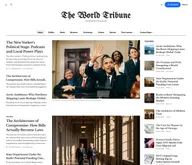
Tribune
Strongest hereTribune is the front page of a newspaper. Lead stories beside the day's picture, a Featured list at the edge, then your sections by topic, each in its own layout, under a masthead that folds away as the reader scrolls. Built for newspapers and multi-author magazines that publish several stories a day, and managed entirely from Ghost admin.
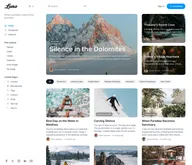
Luno
Strongest hereLuno is a blog that works like an app. A menu that stays open in a fixed sidebar, search a keystroke away, a light and dark switch beside your logo, and a homepage that opens with three featured stories as cover cards. Built for travel, lifestyle and product blogs whose readers expect an interface they already know, and managed entirely from Ghost admin.


Comparing options? Browse all premium Ghost themes side by side.
Get every theme in one bundle
The complete Luxe Themes bundle: every theme, one purchase.